Introduction
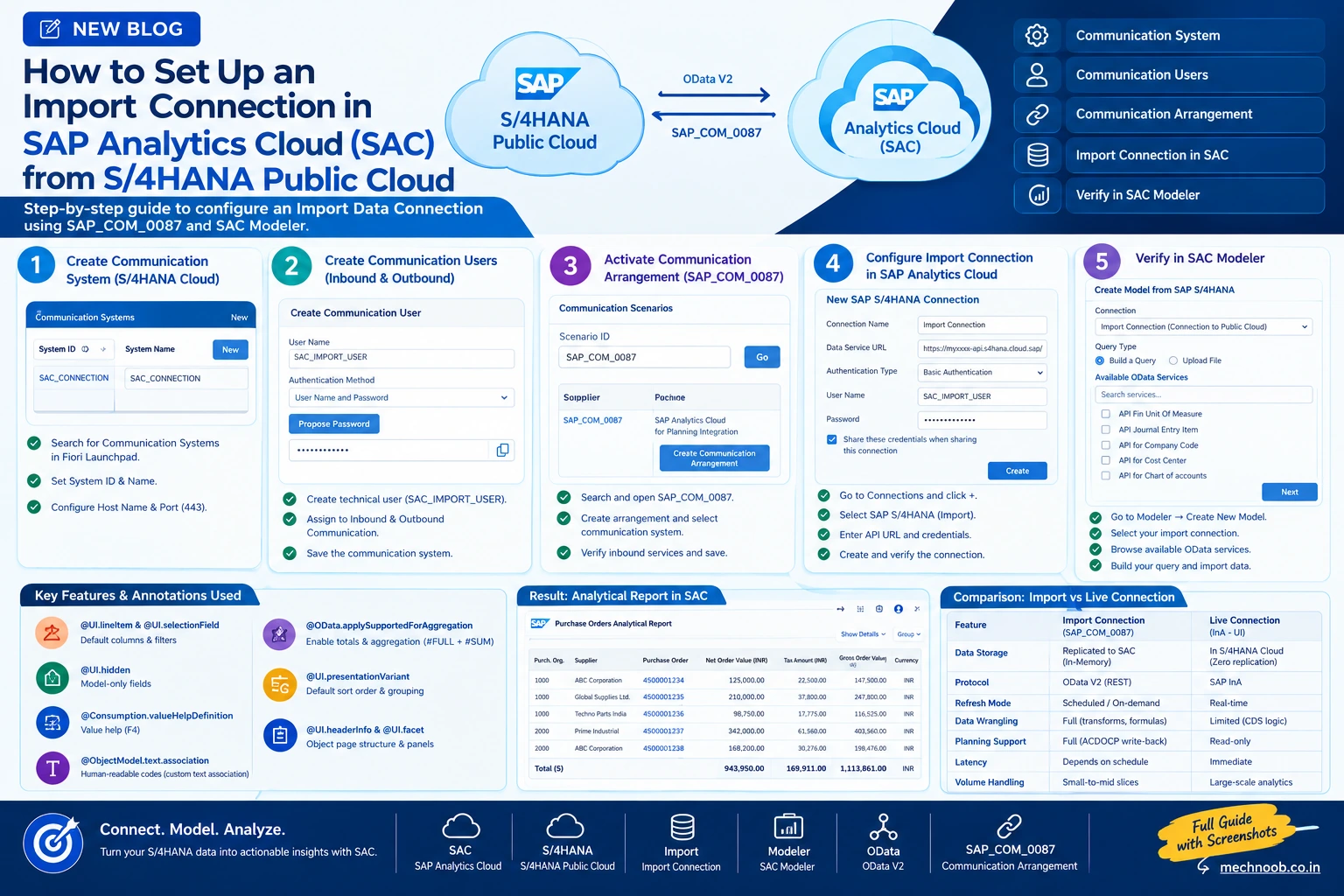
Connecting SAP Analytics Cloud (SAC) to SAP S/4HANA Public Cloud is one of the most critical integration requirements for modern cloud enterprise reporting, financial planning, and cross-functional analytics.
In SAP Analytics Cloud, you typically have two primary connection strategies:
- Live Data Connections: Data remains in the S/4HANA system and is queried in real time via the Information Access (InA) protocol (as demonstrated in our guide on exposing analytical queries as live data models).
- Import Data Connections: Data is extracted and loaded directly into SAC's in-memory storage engine. This approach enables advanced data wrangling, data transformations, custom hierarchy enrichments, offline analysis, and native SAC Planning capabilities.
In this step-by-step tutorial, we will configure an Import Data Connection between SAP S/4HANA Public Cloud and SAP Analytics Cloud. We will cover the complete end-to-end configuration across both tenants:
- Setting up the Communication System in S/4HANA Cloud.
- Creating dedicated Inbound & Outbound Communication Users.
- Activating the Communication Arrangement (
SAP_COM_0087). - Configuring the Import Connection in SAP Analytics Cloud.
- Verifying and browsing OData services inside SAC Modeler.
Starting Point: SAC Connections Overview
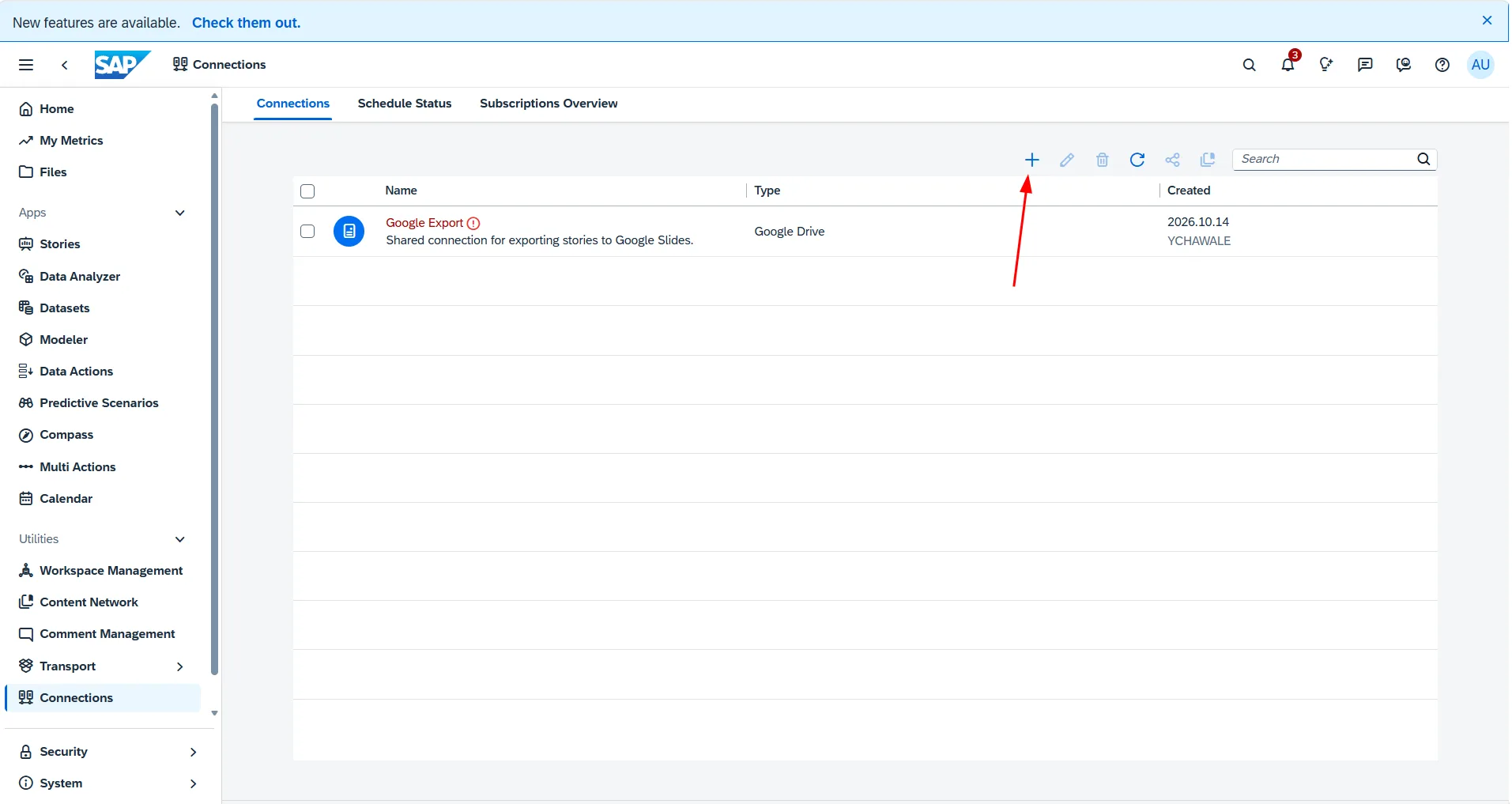
Before configuring S/4HANA, let's take a look at the Connections screen in our SAP Analytics Cloud tenant.
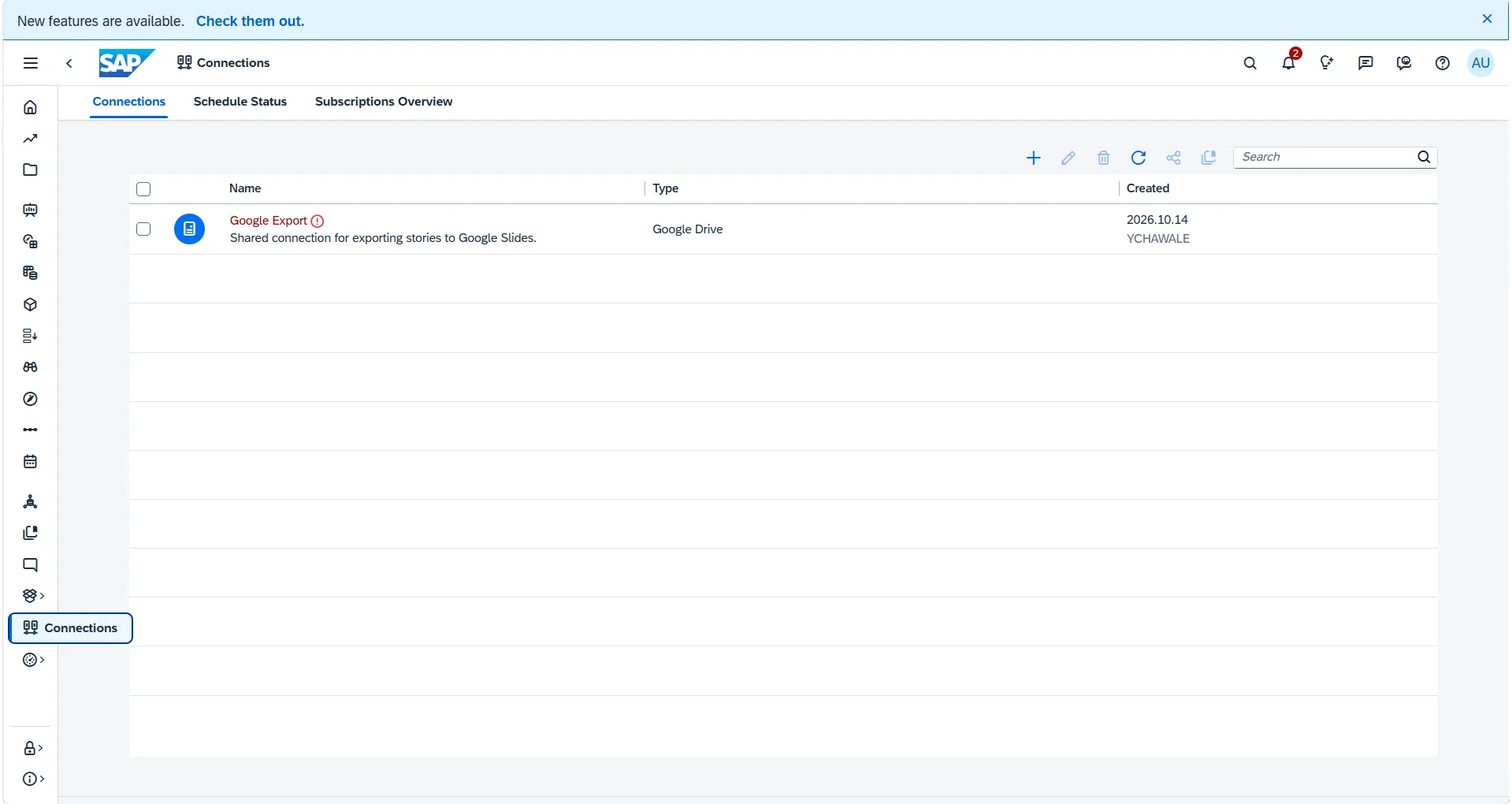
At this stage, no SAP S/4HANA connection exists. To enable SAC to pull data from S/4HANA Public Cloud, we first need to configure the communication handshake in S/4HANA Cloud.
Prerequisites
Before starting, ensure you have the following access:
- Administrator or Configurator access in SAP S/4HANA Public Cloud (Business Catalog
SAP_CORE_BC_COMfor Communication Management). - Scope Item
1YB(SAP Analytics Cloud for Planning Integration) active in your S/4HANA tenant. - Administrator or Modeler role in SAP Analytics Cloud to manage data connections.
Phase 1: Configure S/4HANA Public Cloud Tenant
All initial integration objects are configured via the SAP Fiori Launchpad on your S/4HANA Public Cloud tenant.
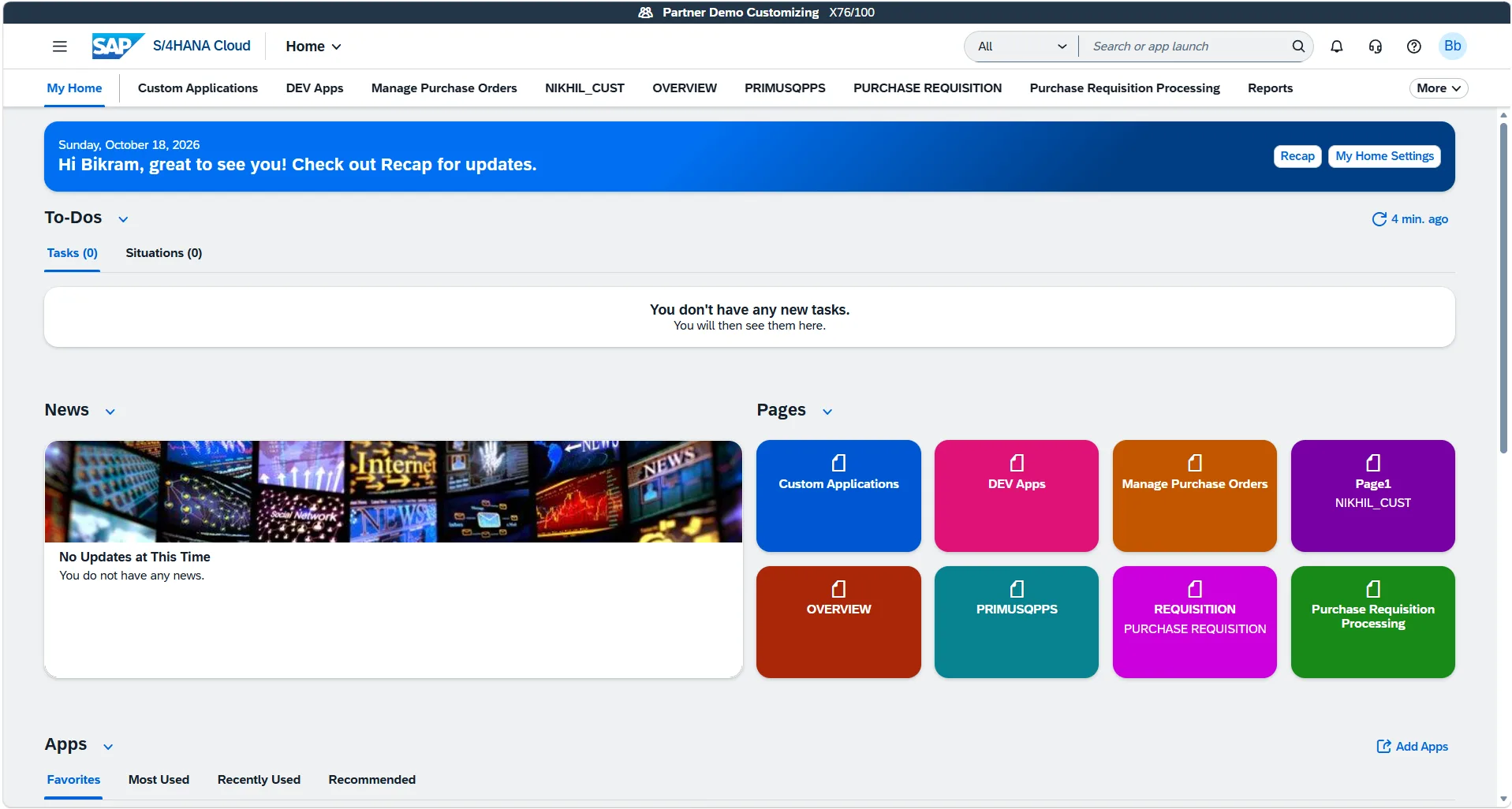
Step 1: Create a Communication System
A Communication System represents the external system (or communication host) with which your S/4HANA Cloud tenant exchanges data.
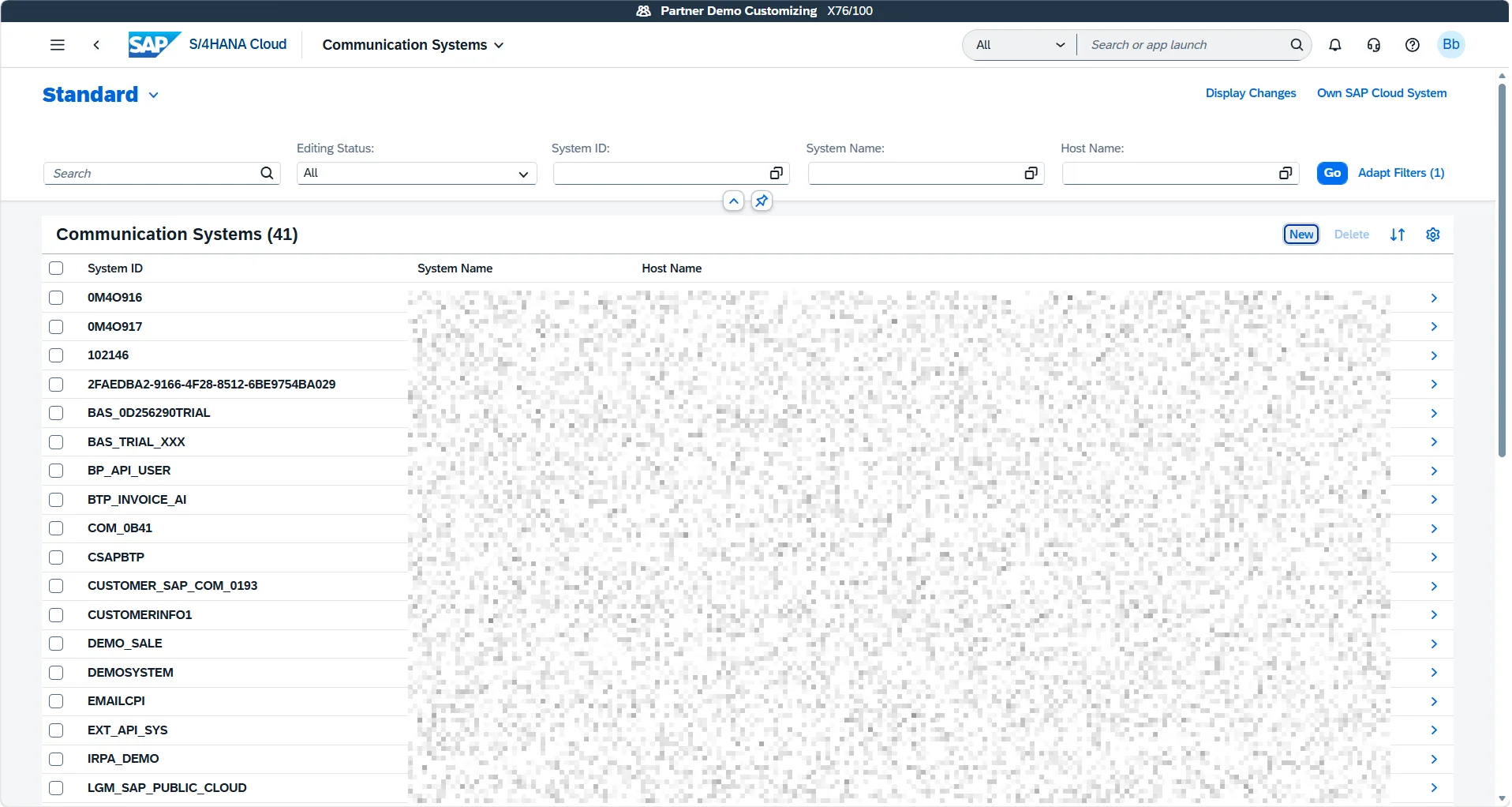
- In the Fiori Launchpad search bar, search for Communication Systems and open the app.
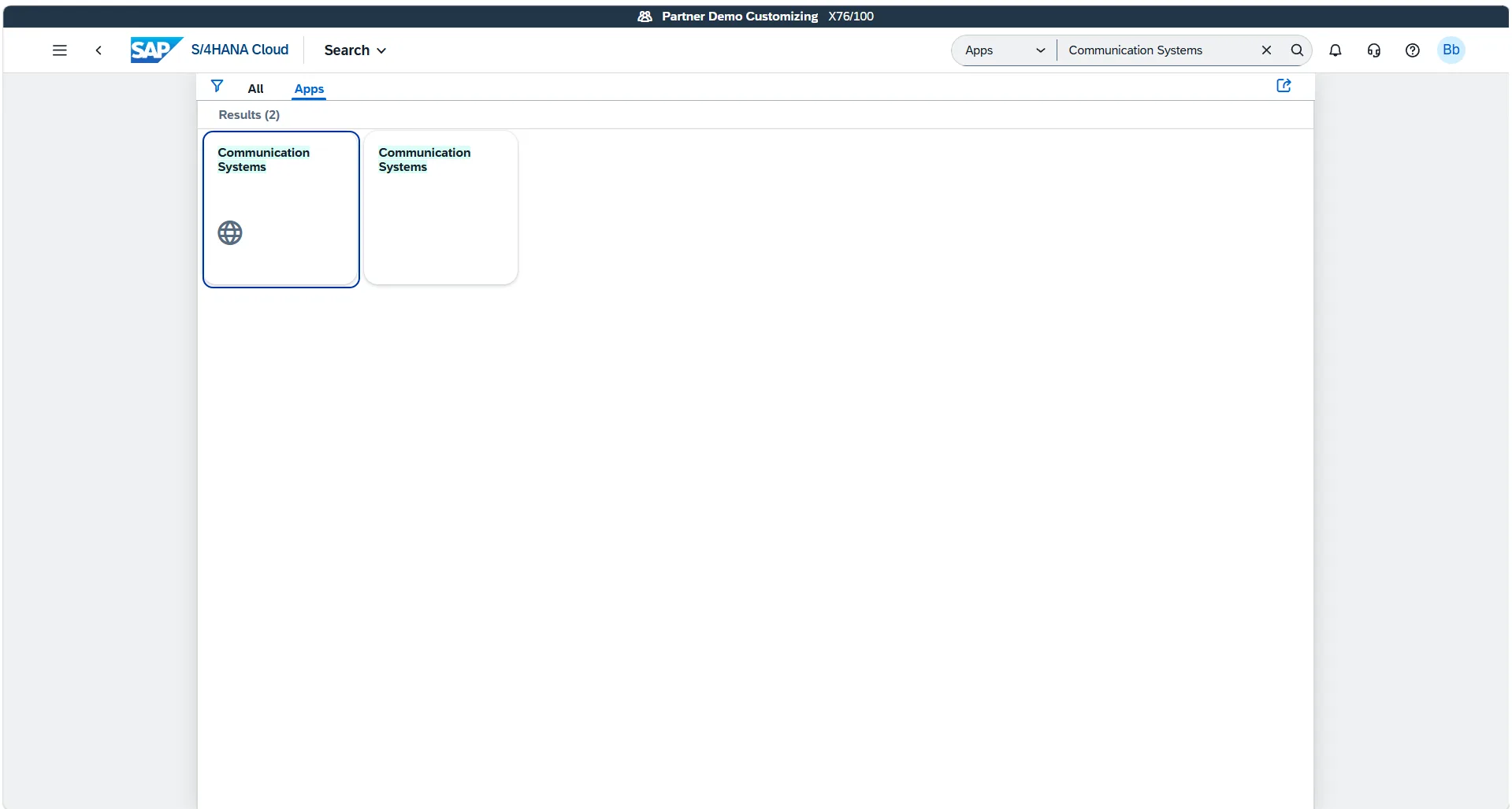
- The app displays all existing communication systems configured in your tenant. Click the New button in the upper-right corner of the table.
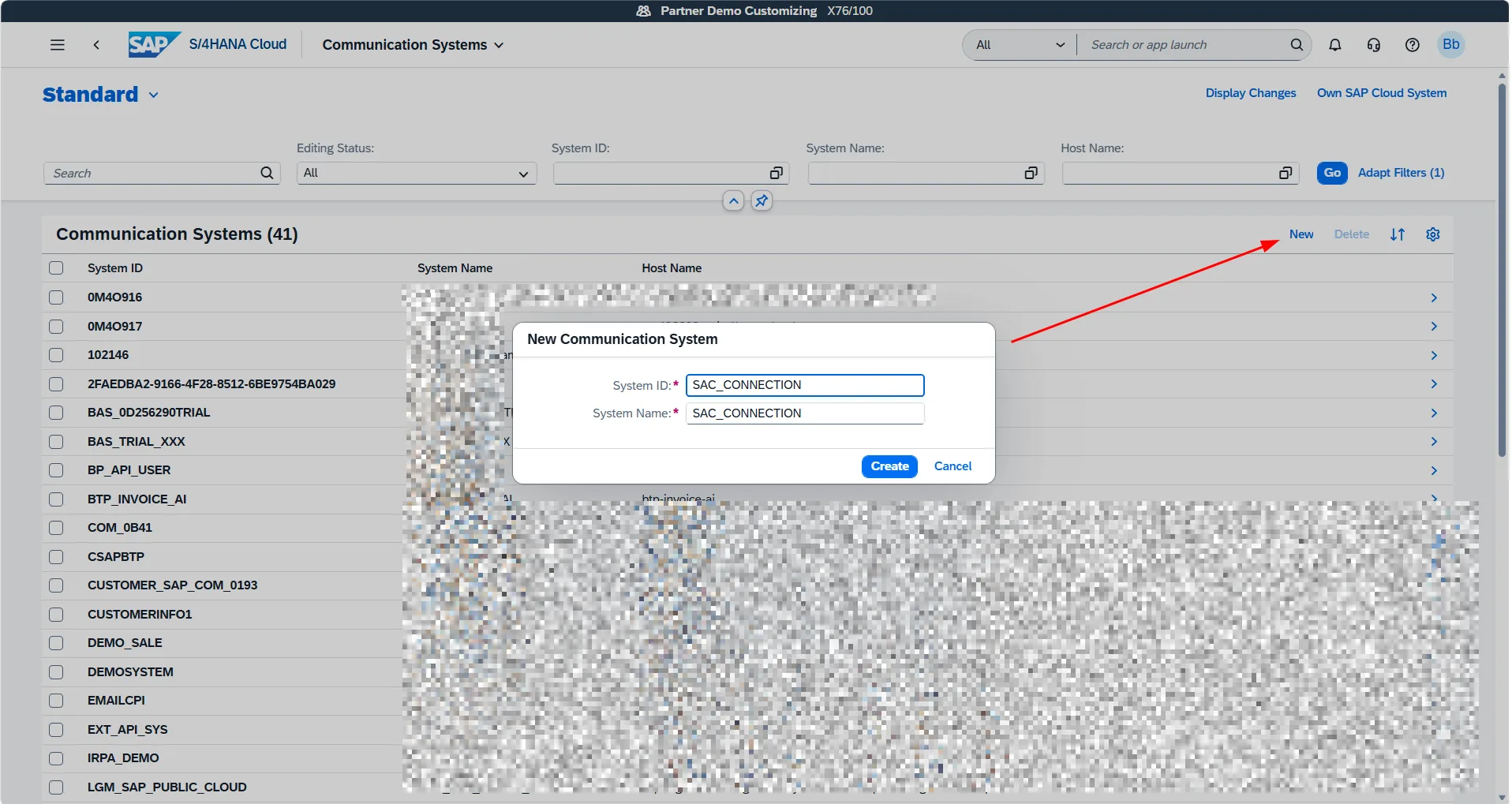
- In the creation dialog:
- System ID:
SAC_CONNECTION - System Name:
SAC_CONNECTION - Click Create.
- System ID:
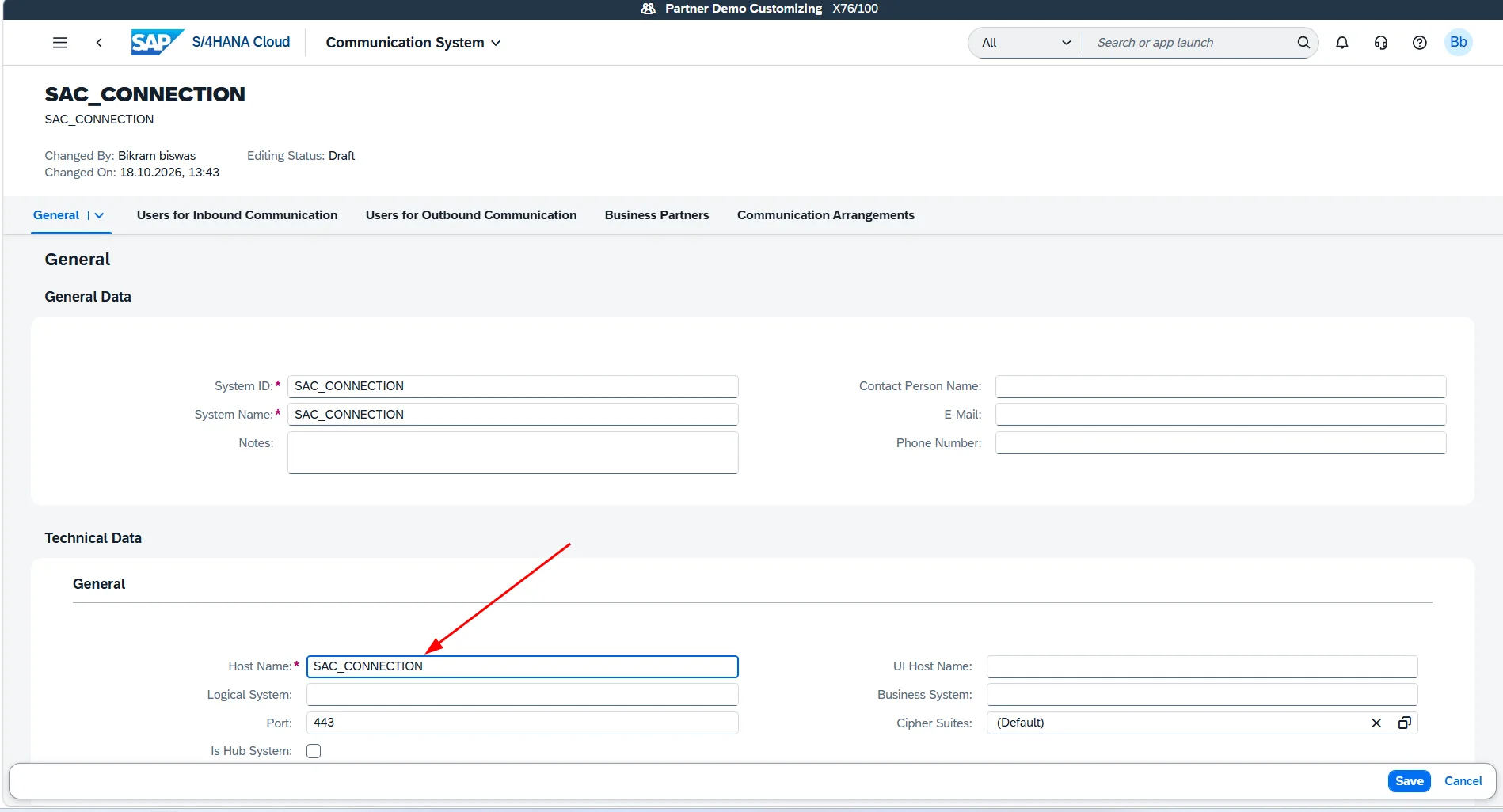
- Under the Technical Data section in the General tab:
- Host Name: Enter
SAC_CONNECTION(or your SAC tenant host domain). - Port:
443(standard HTTPS port).
- Host Name: Enter
Step 2: Create Inbound and Outbound Communication Users
For secure API handshakes, S/4HANA Cloud uses dedicated Communication Users rather than human business users.
Important Distinction: A Communication User is a technical service user created exclusively for API integration, Communication Systems, and Communication Arrangements. It cannot log in to the Fiori Launchpad UI.
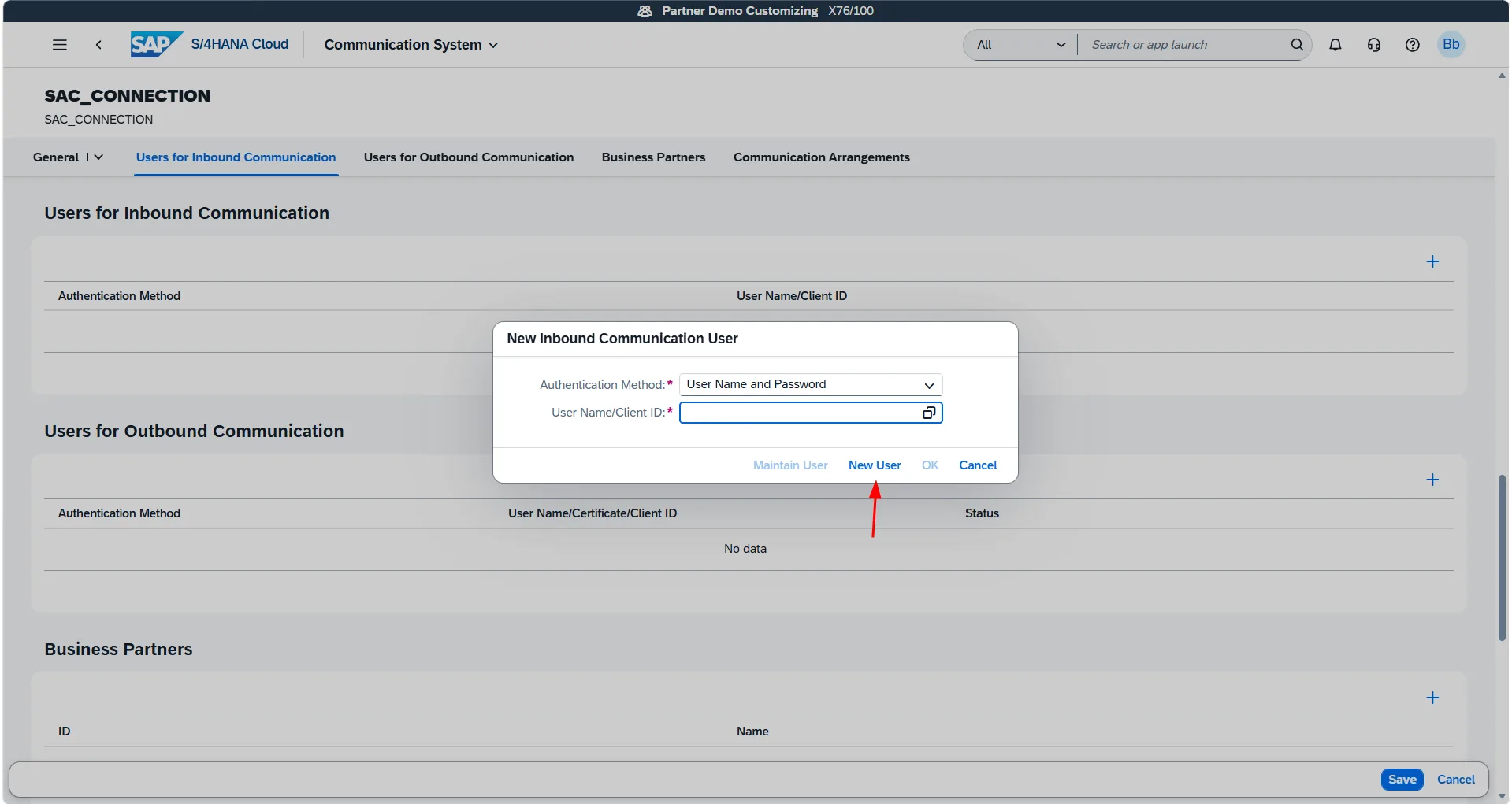
- In your newly created communication system, navigate to the Users for Inbound Communication tab and click the + (Add) button.
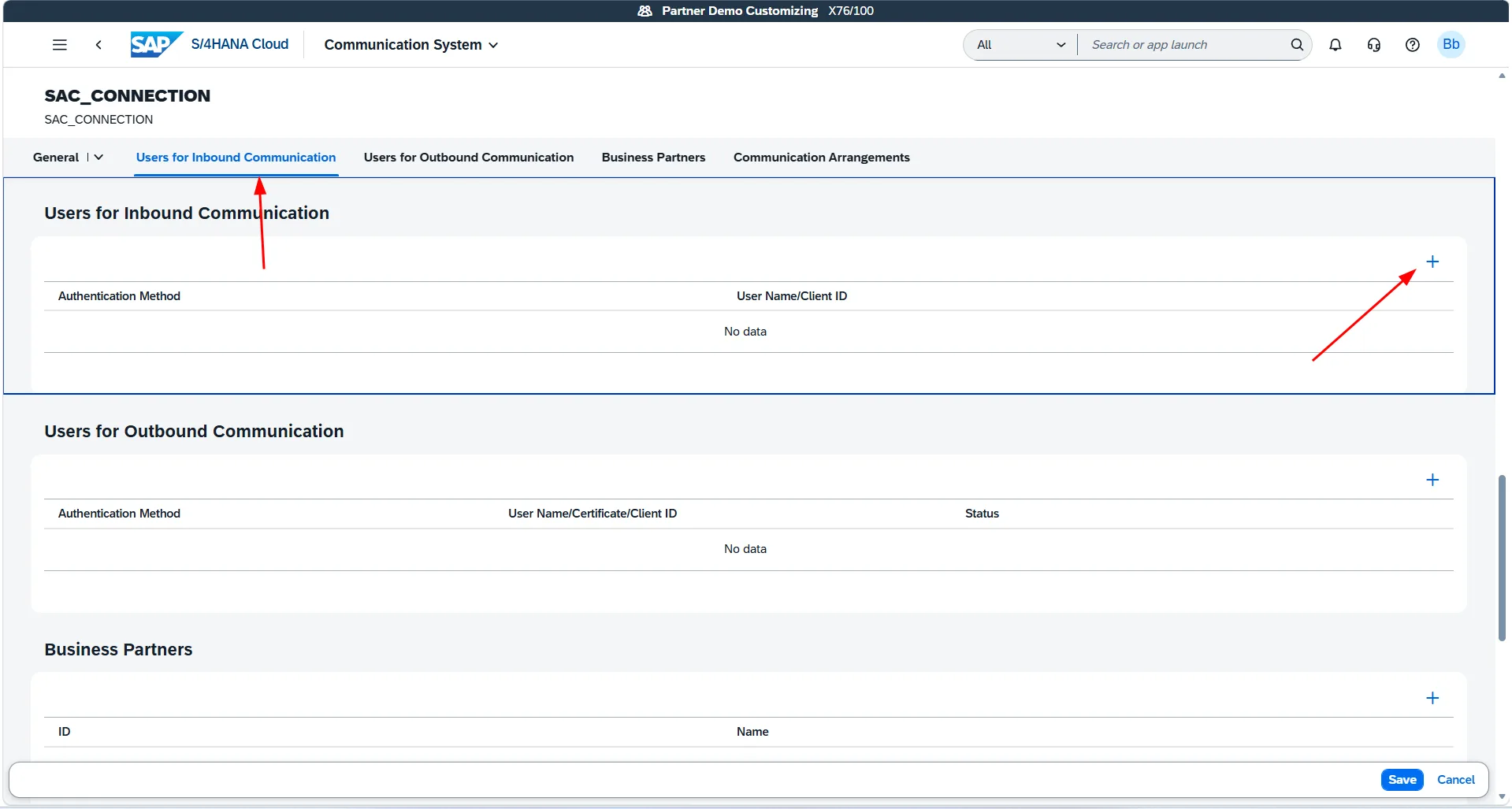
- In the dialog, set the Authentication Method to User Name and Password. If you haven't created the user yet, click New User.
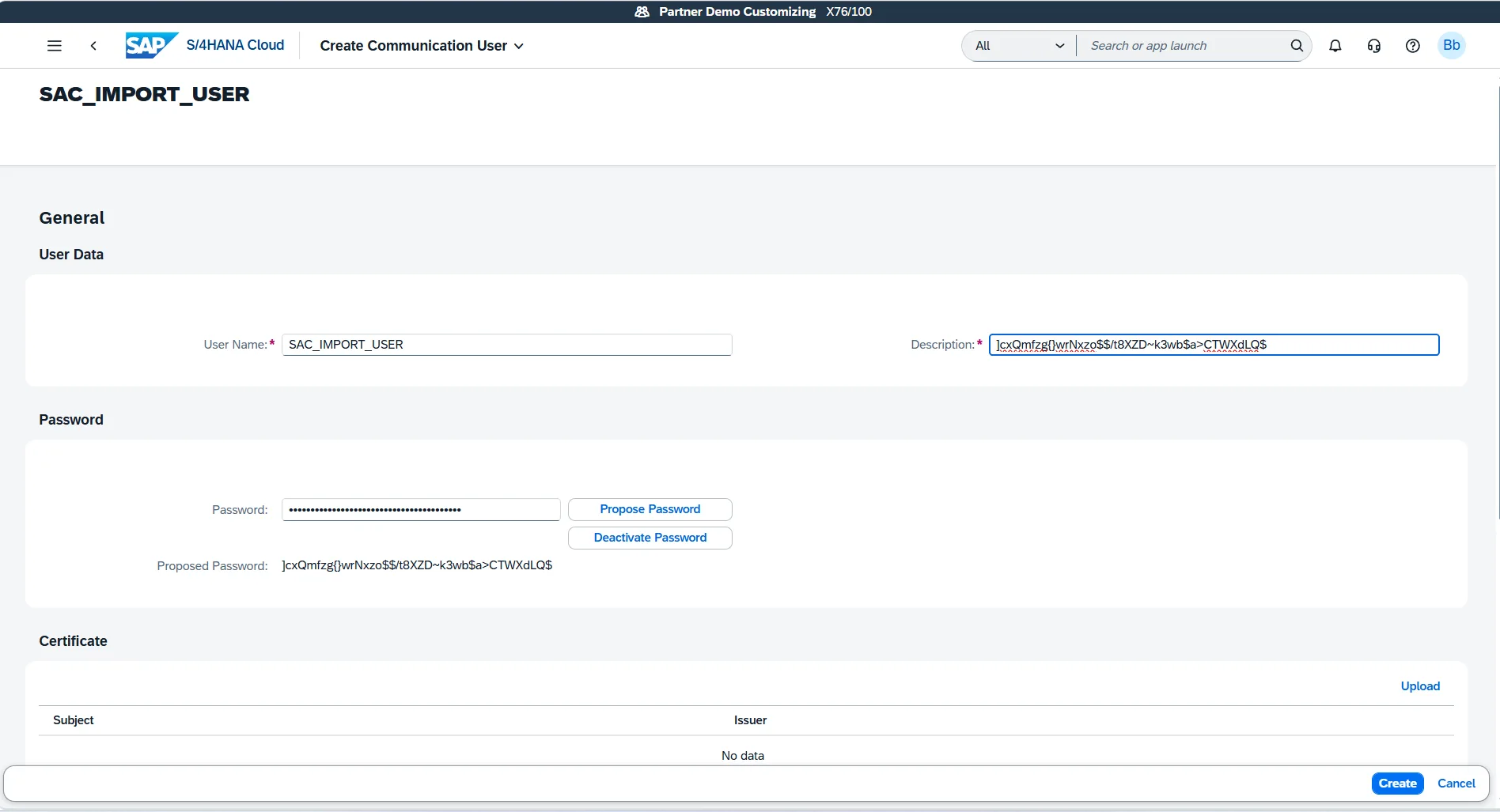
- In the Create Communication User screen:
- User Name:
SAC_IMPORT_USER - Description: Enter a clear identifier (e.g.,
SAC Import Integration User). - Click Propose Password to generate a secure random password.
- Copy and securely save this password — you will need it when configuring SAC.
- Click Create.
- User Name:
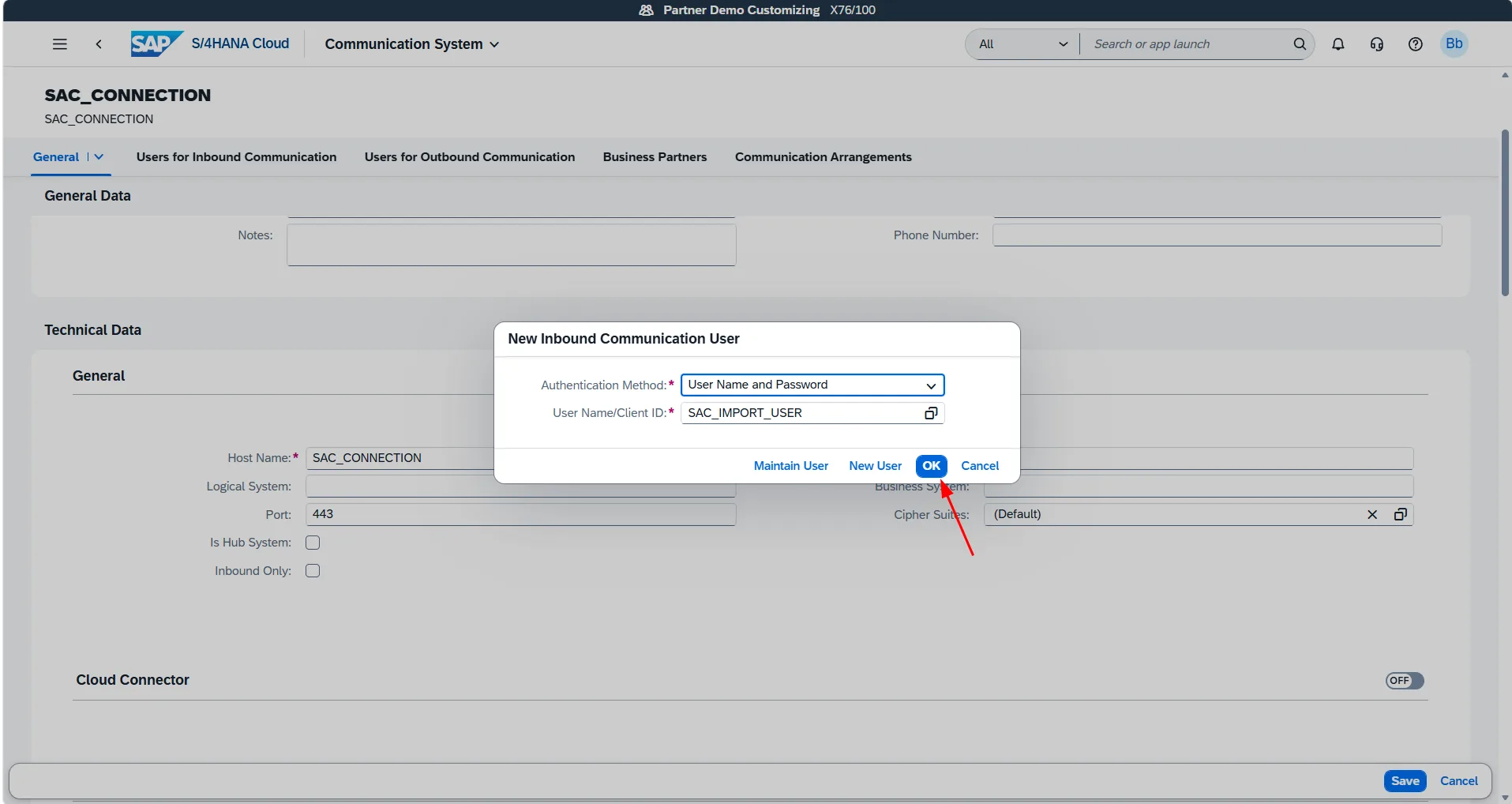
- Back in the Communication System, select
SAC_IMPORT_USERand click OK.
- Scroll down to Users for Outbound Communication, click +, and assign the same
SAC_IMPORT_USERcredentials.
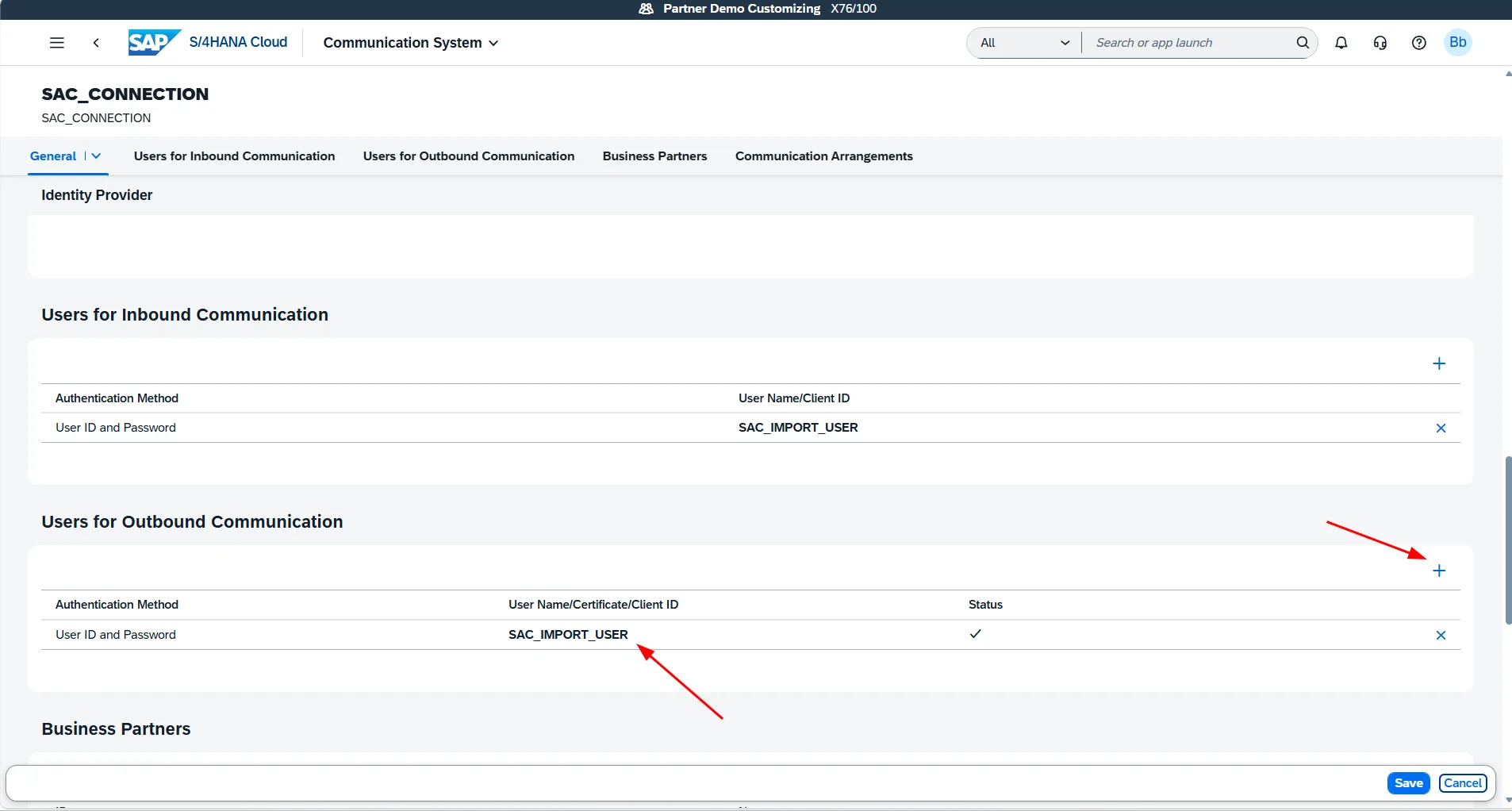
- Click Save in the bottom right corner to persist the Communication System.
Step 3: Activate Communication Arrangement (SAP_COM_0087)
A Communication Arrangement binds a specific integration scenario to a Communication System and activates the corresponding OData and SOAP service interfaces.
For importing transaction and master data into SAC, SAP provides pre-delivered scenario SAP_COM_0087 (SAP Analytics Cloud for Planning Integration).
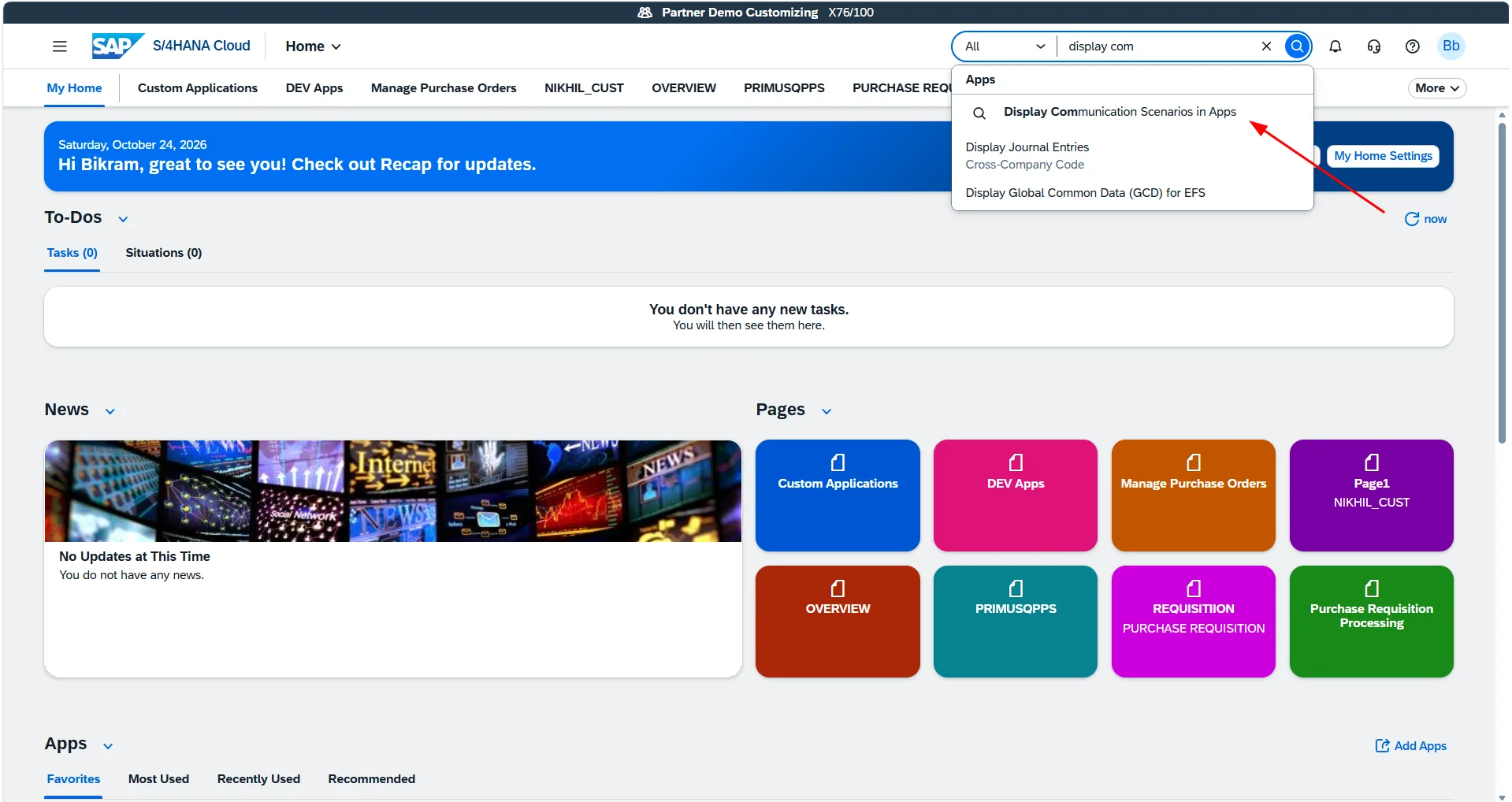
- Search for Display Communication Scenarios in the Fiori Launchpad.
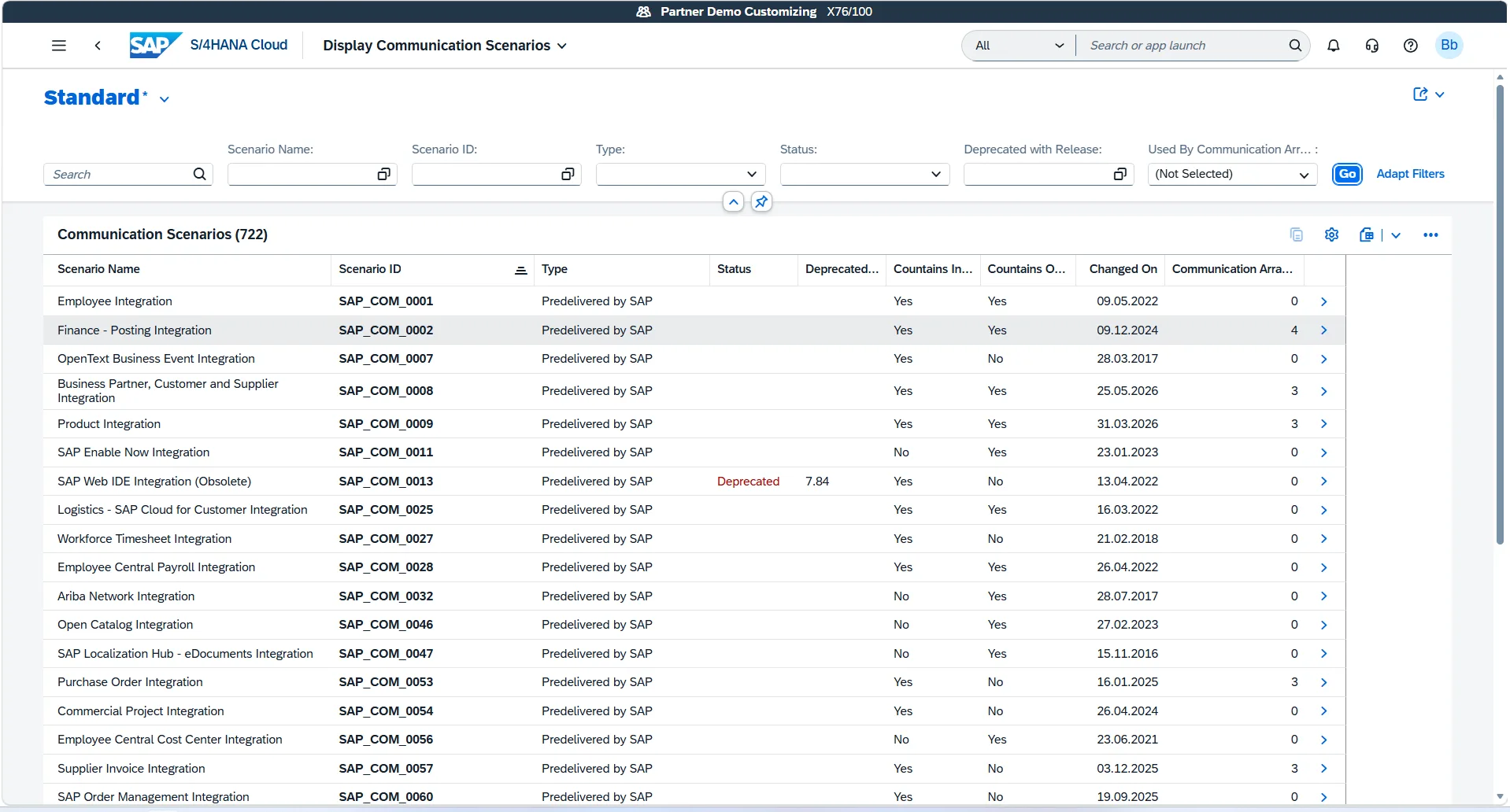
- Open the app to view all communication scenarios supported by your system.
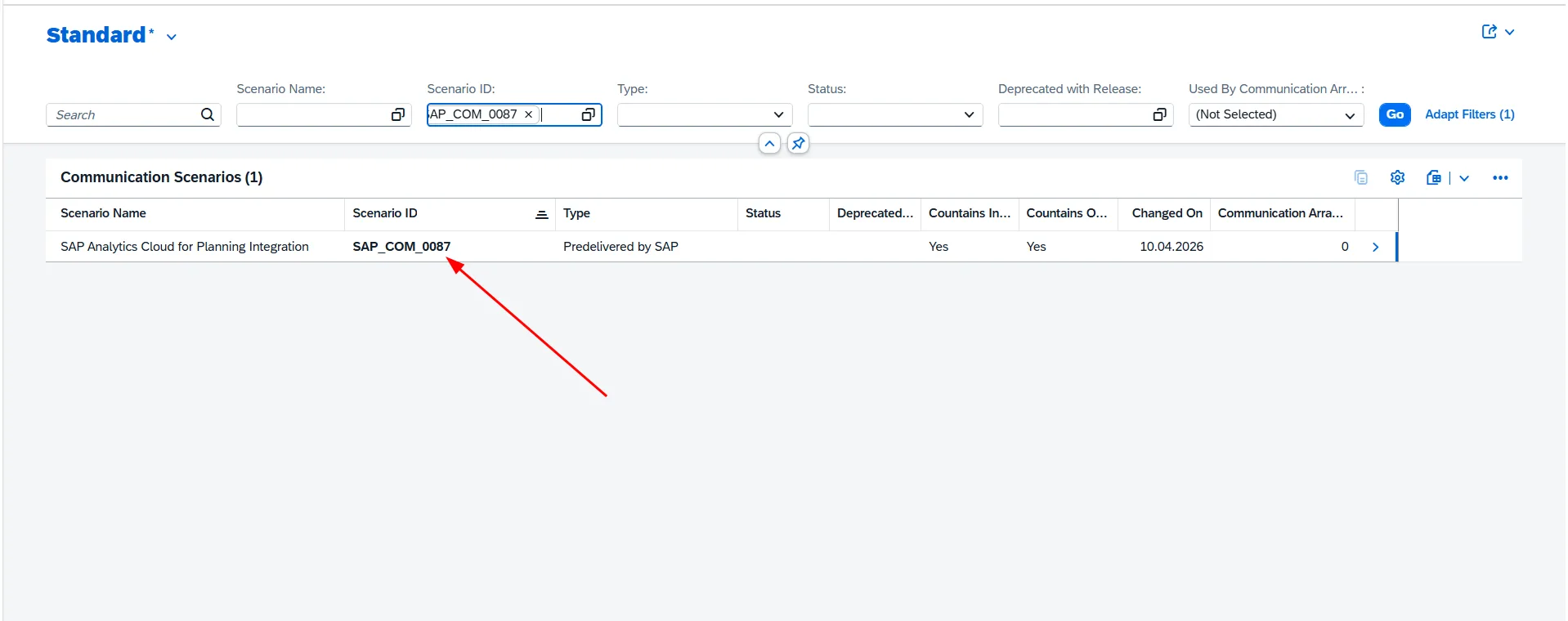
- In the Scenario ID filter, enter
SAP_COM_0087and click Go.
Note on Scope Item 1YB: If scenario
SAP_COM_0087does not appear in your search results, verify in Central Business Configuration (CBC) or Manage Your Solution that Scope Item1YBis activated in your S/4HANA Public Cloud tenant.
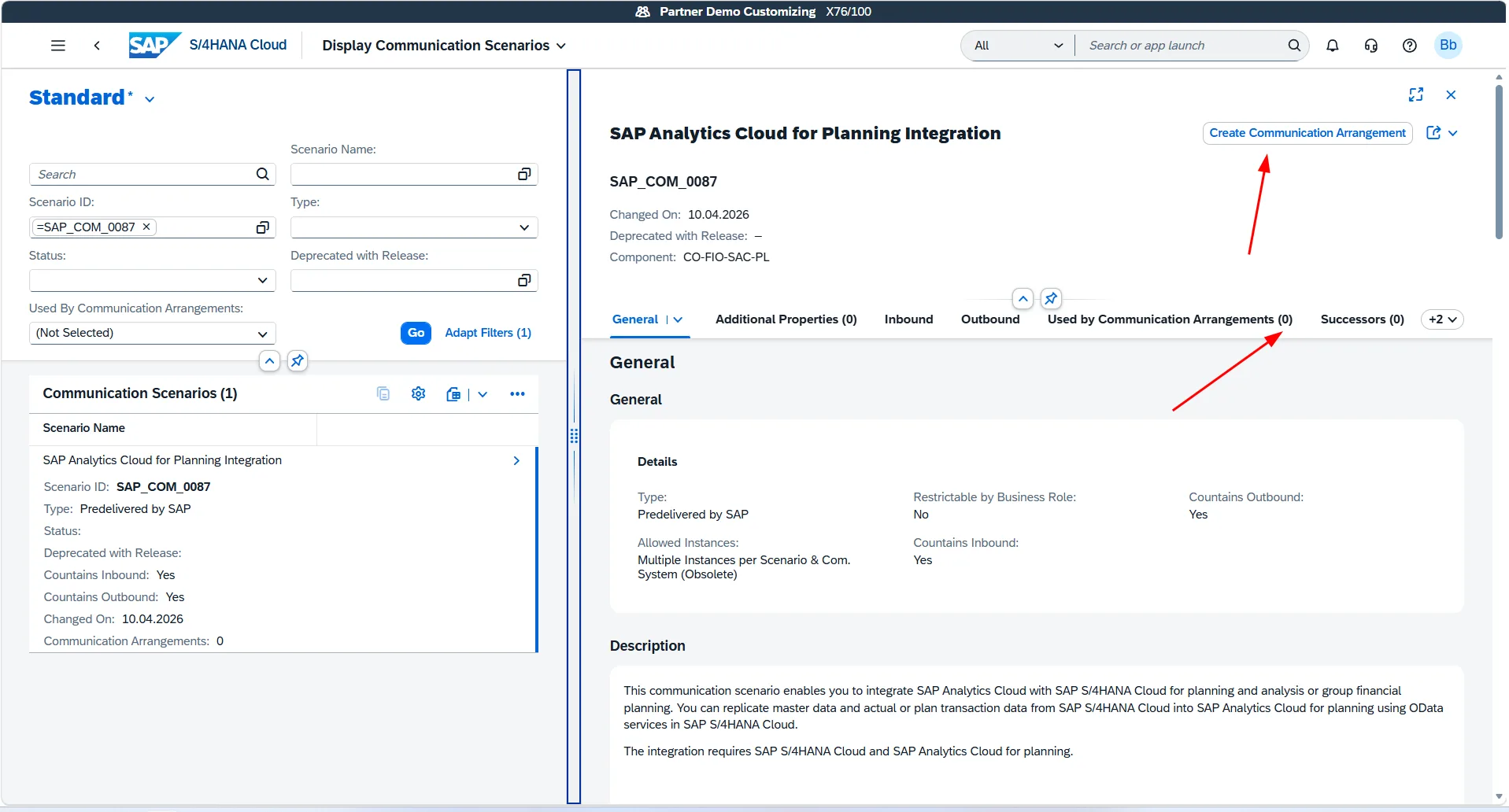
- Select
SAP_COM_0087to inspect its details, then click Create Communication Arrangement in the upper-right corner.
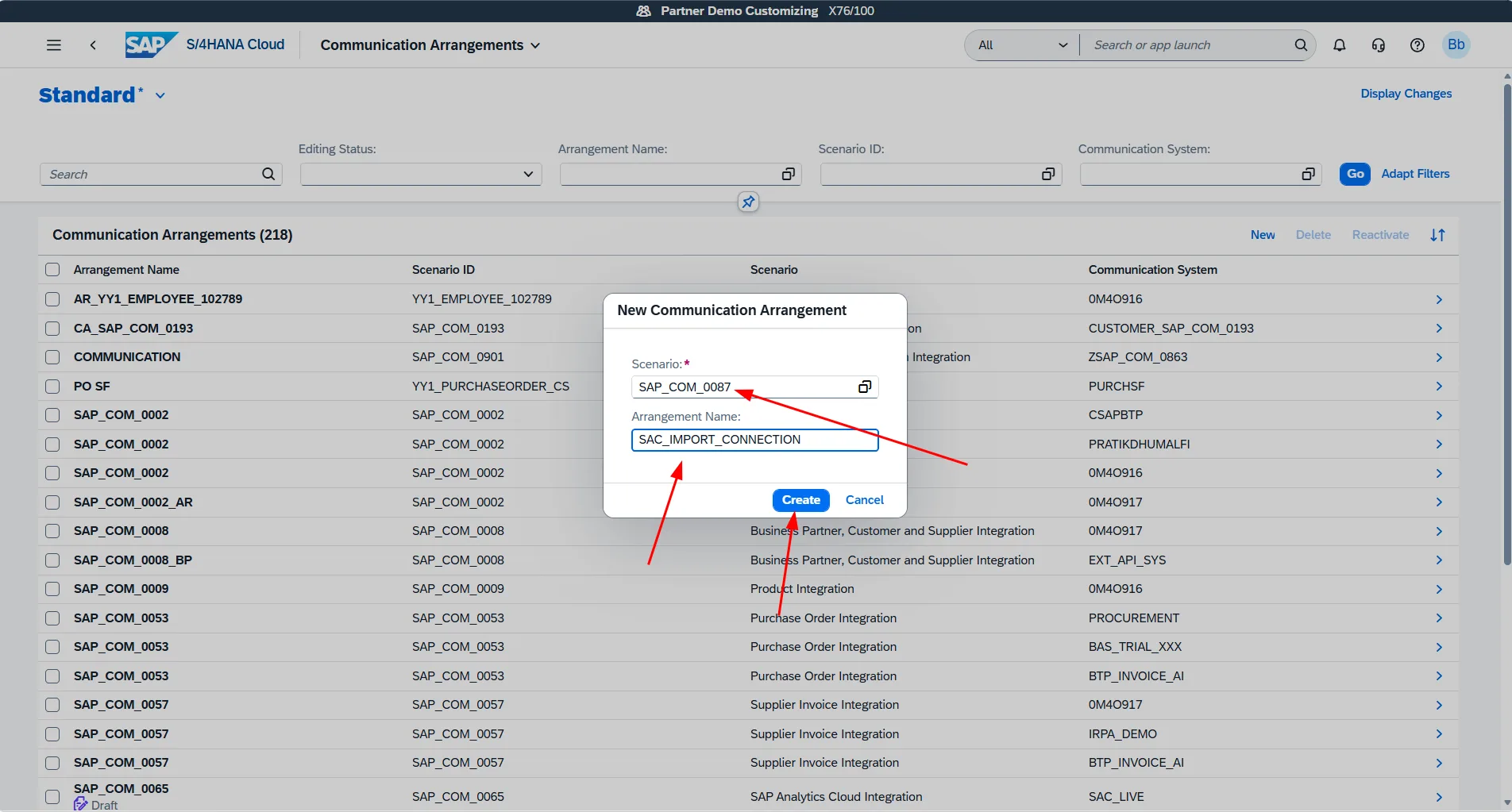
- In the dialog:
- Scenario:
SAP_COM_0087 - Arrangement Name:
SAC_IMPORT_CONNECTION - Click Create.
- Scenario:
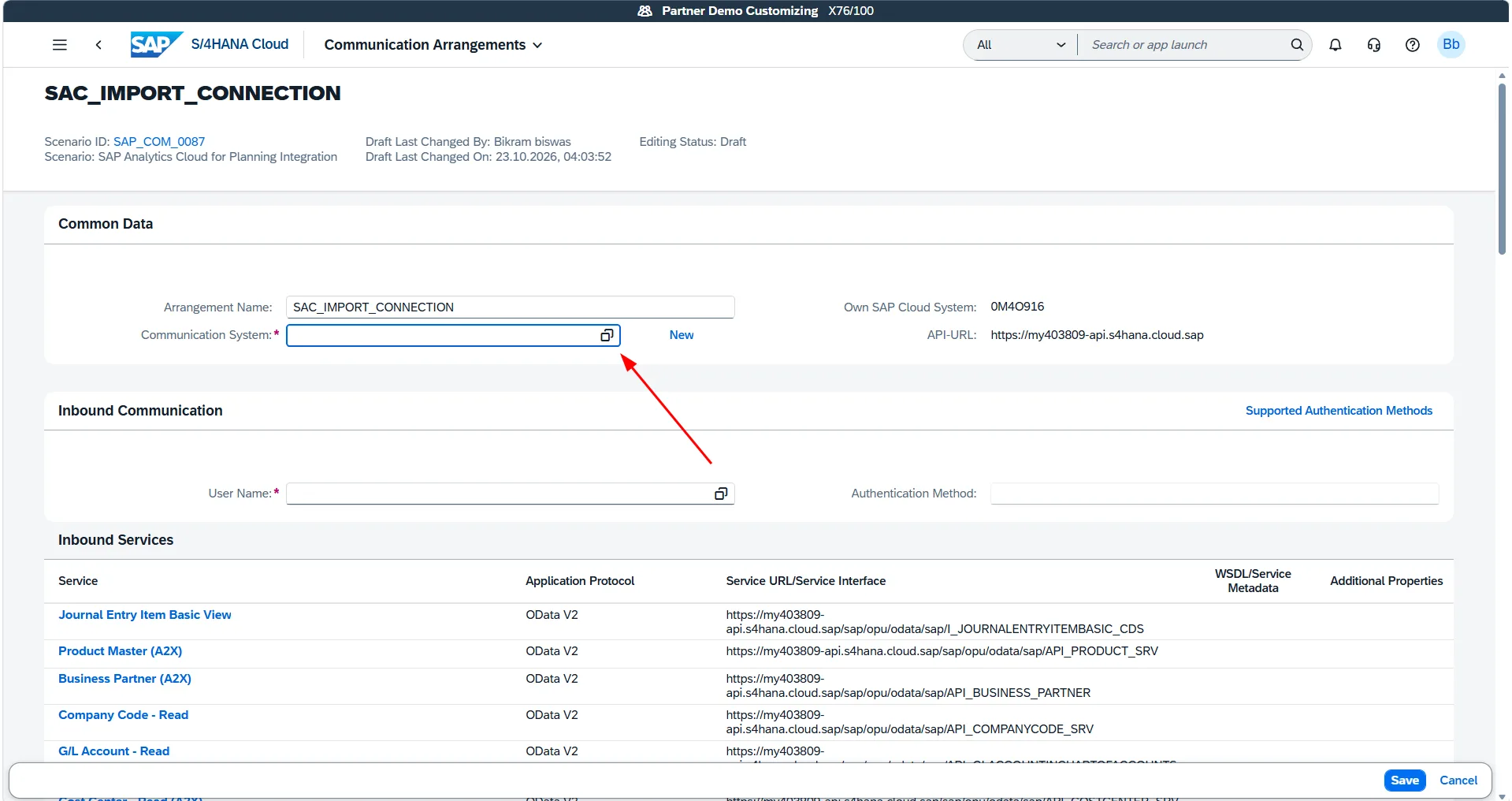
- On the arrangement configuration screen, locate the Common Data section and click the value help for Communication System.
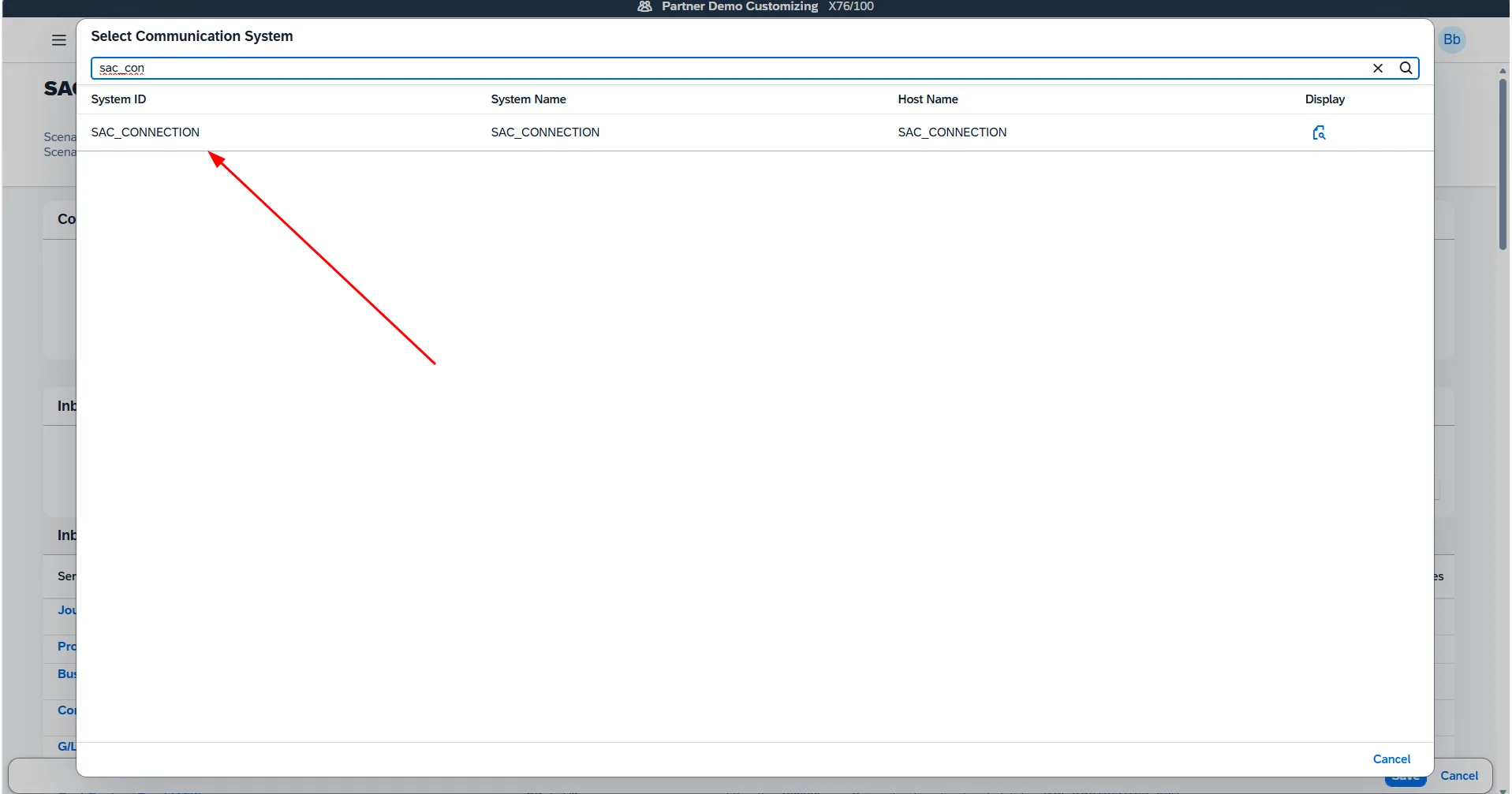
- Select the communication system we created in Step 1:
SAC_CONNECTION.
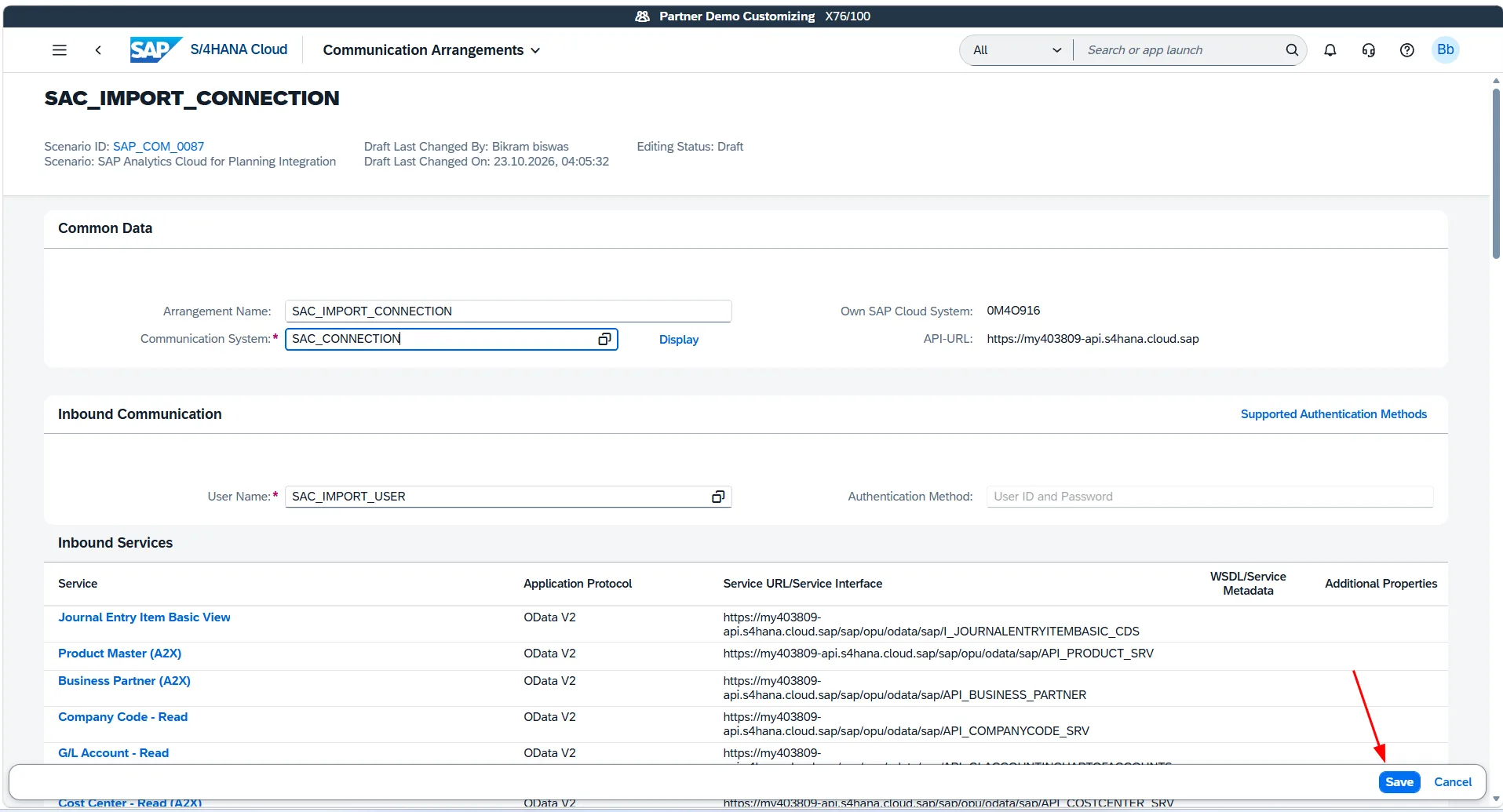
- Notice how the system automatically fills:
- Inbound Communication User:
SAC_IMPORT_USER - API-URL endpoint (e.g.
https://myXXXXXX-api.s4hana.cloud.sap) - Pre-activated Inbound OData V2 Services:
Journal Entry Item Basic View(I_JOURNALENTRYITEMBASIC_CDS)Product Master (A2X)(API_PRODUCT_SRV)Business Partner (A2X)(API_BUSINESS_PARTNER)Company Code - Read(API_COMPANYCODE_SRV)G/L Account - Read(API_GLACCOUNTINCHARTOFACCOUNTS_SRV)Cost Center - Read (A2X)(API_COSTCENTER_SRV)
- Inbound Communication User:
Click Save to activate the arrangement.
Phase 2: Configure Import Connection in SAP Analytics Cloud
With the S/4HANA endpoints and technical user active, we can now configure the connection inside SAP Analytics Cloud.
Step 4: Add New SAP S/4HANA Connection in SAC
- Log in to your SAP Analytics Cloud tenant.
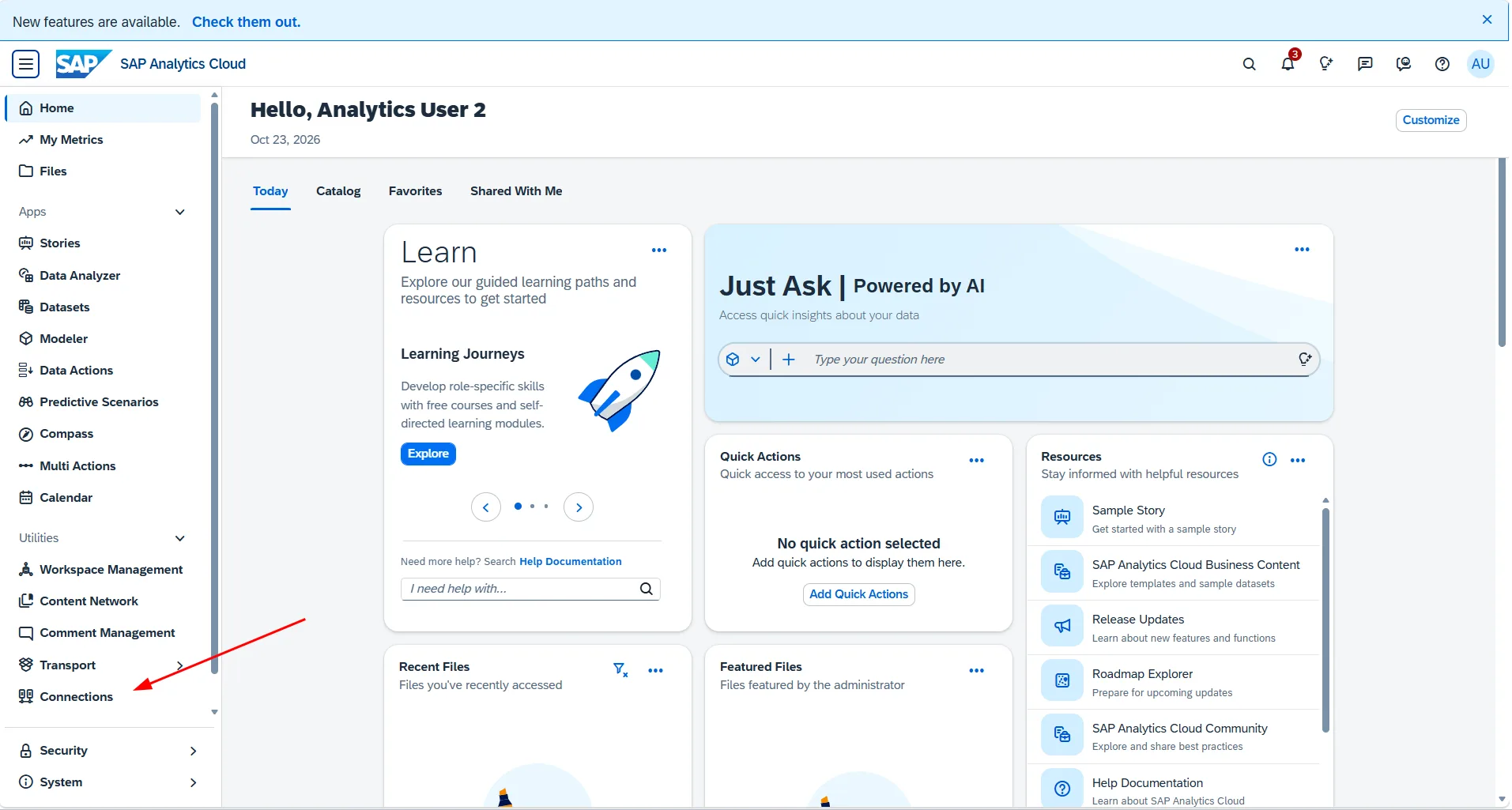
- In the left navigation menu, expand Utilities (or Data Integration) and click Connections.
- On the Connections page, click the + (Add Connection) icon.
-
Under Acquire Data (Import), select SAP S/4HANA.
-
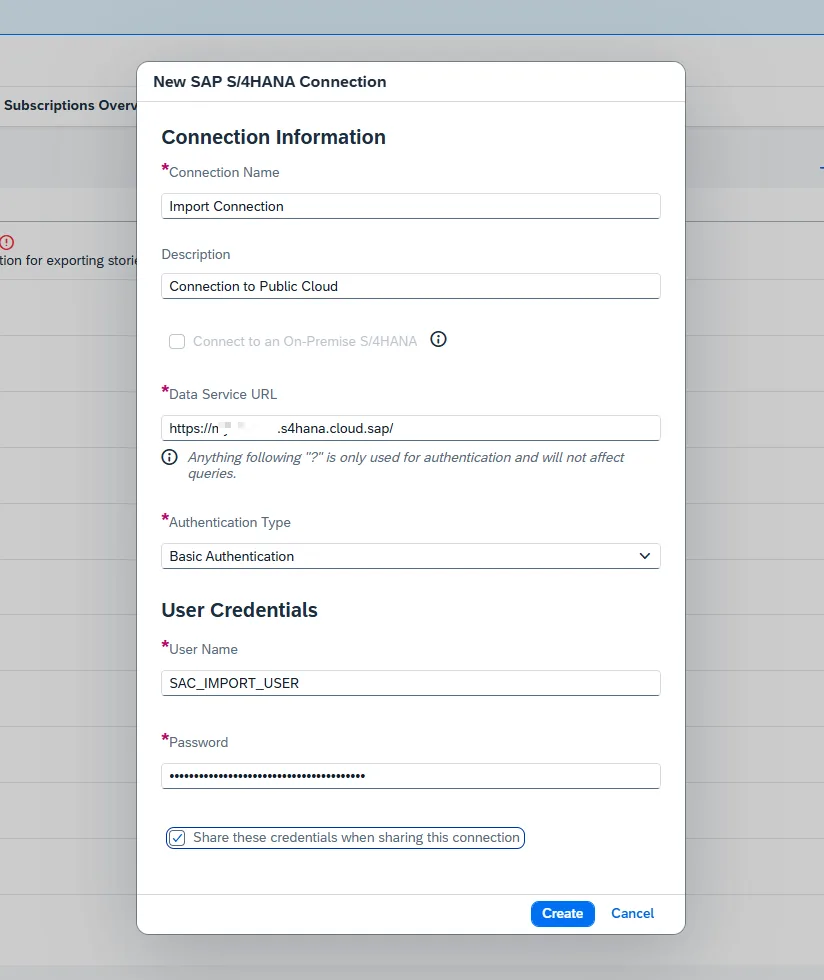
In the New SAP S/4HANA Connection configuration modal, provide the connection details:
- Connection Name:
Import Connection - Description:
Connection to Public Cloud - Connect to an On-Premise S/4HANA: Leave unchecked (we are connecting to Public Cloud).
- Data Service URL: Enter your S/4HANA Public Cloud tenant URL with trailing slash:
https://myXXXXXX.s4hana.cloud.sap/ - Authentication Type: Select
Basic Authentication. - User Name:
SAC_IMPORT_USER - Password: Paste the secure password generated for
SAC_IMPORT_USERin Step 2. - Share these credentials when sharing this connection: Check this option if other modelers in your organization need to reuse this connection without entering credentials.
- Click Create.
- Connection Name:
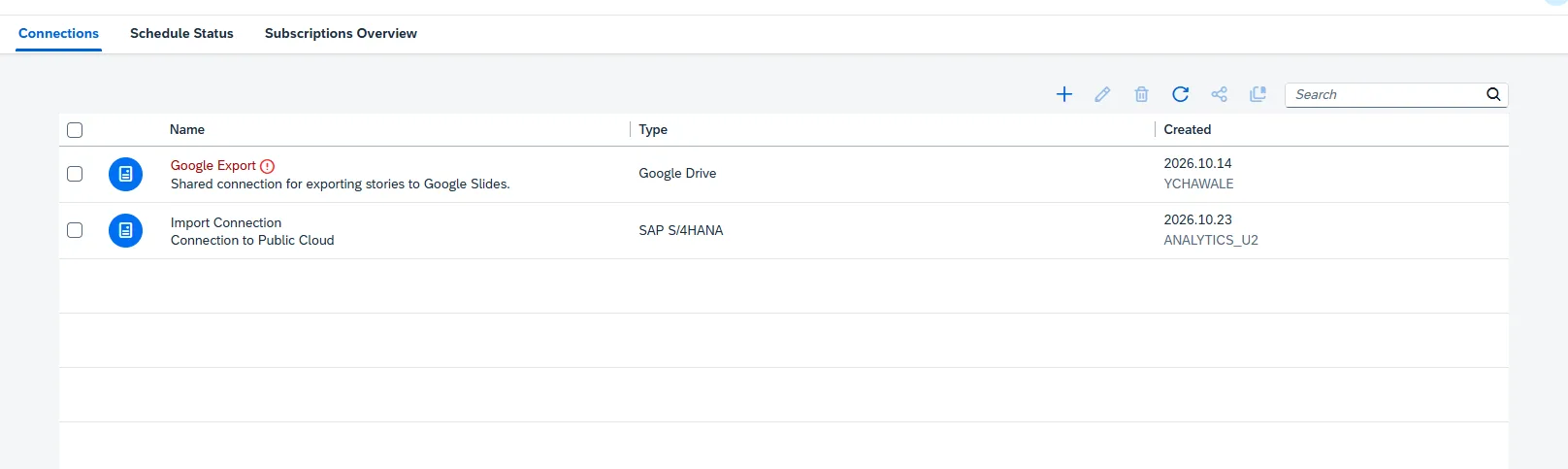
- SAC validates the connection with the S/4HANA tenant. Once verified, the new connection
Import Connectionappears in the table with typeSAP S/4HANA.
Phase 3: Verify and Import Data in SAC Modeler
To ensure our connection is fully functional, let's create a new model in SAC Modeler and inspect the exposed datasets.
Step 5: Acquire Datasets via SAC Modeler
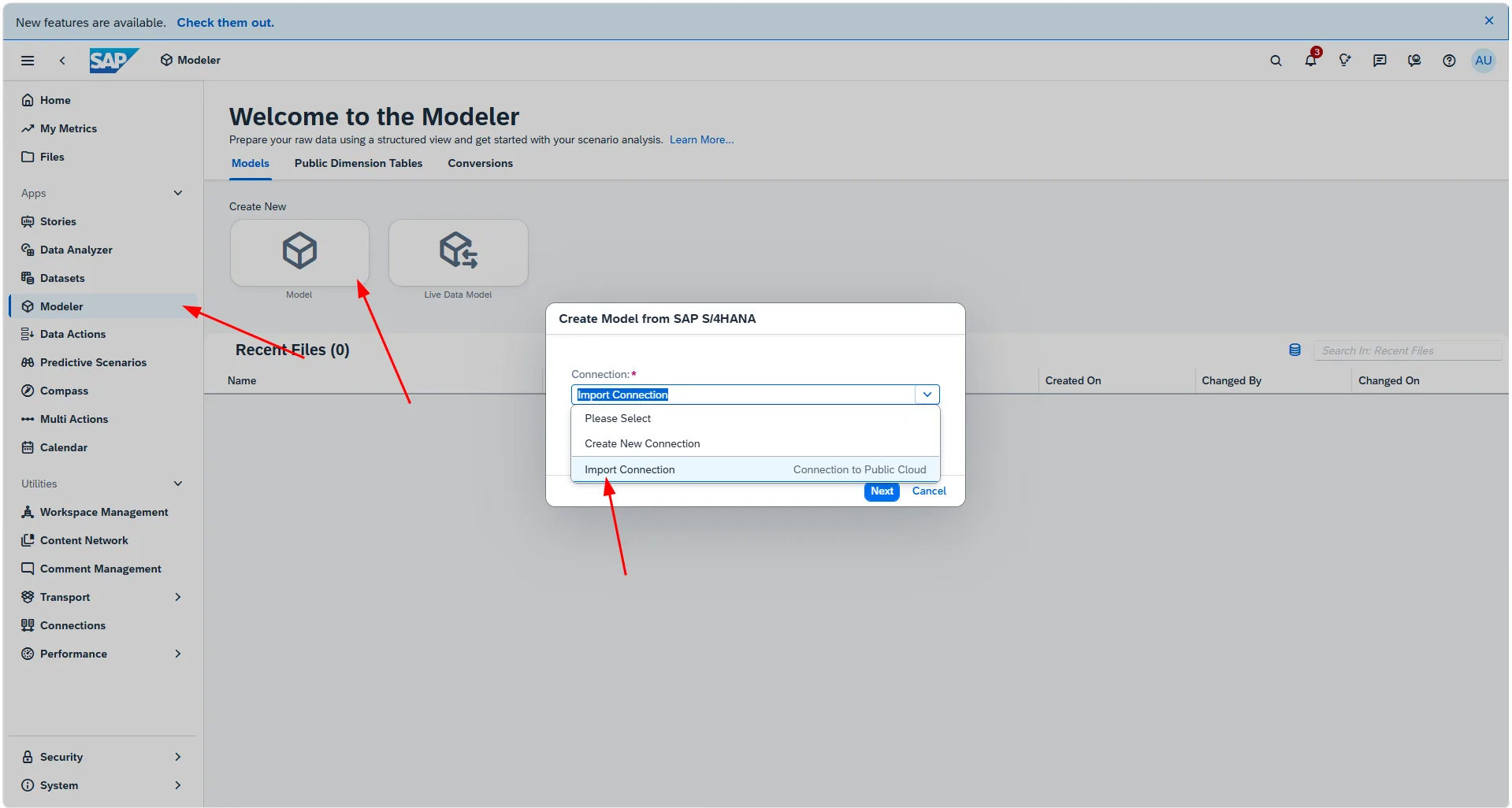
- From the SAC side navigation, select Modeler.
- Under Create New, click Model.
-
In the Create Model from SAP S/4HANA dialog, click the Connection dropdown and select our newly created
Import Connection (Connection to Public Cloud). -
Click Next.
-
In the New Query for SAP S/4HANA wizard, choose Build a Query. The system queries the S/4HANA catalog through
SAP_COM_0087and displays all available OData services ready for acquisition:API Fin Unit Of MeasureAPI Fin WBS Element Hierarchy NodeAPI Financial Planning Entry ItemAPI Journal Entry ItemAPI Lean Service for Writing Plan Data to ACDOCPAPI Opening BalanceAPI for Business AreaAPI for Chart of accountsAPI for Company CodeAPI for Cost CenterAPI for Cost Center Activity Type
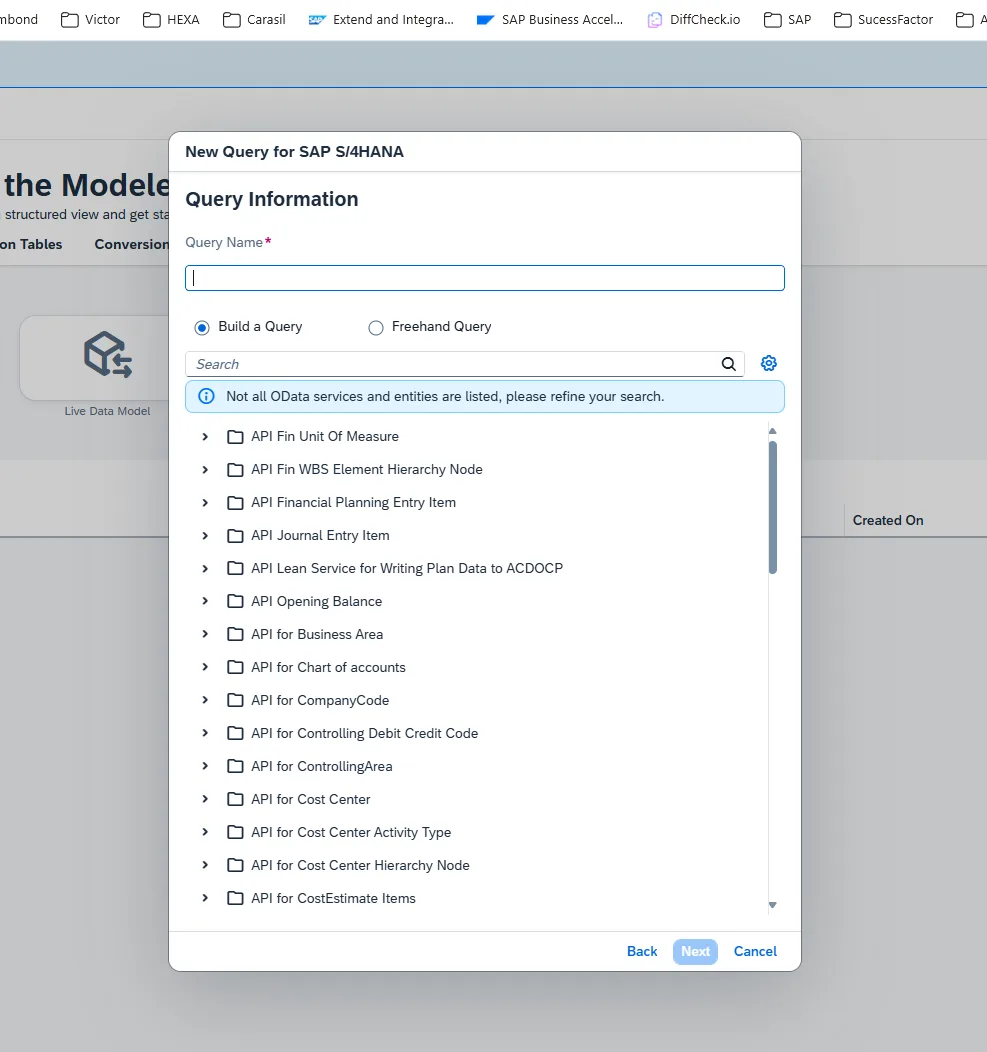
You can now select any entity, drag and drop dimensions and measures into your query, apply filters, and schedule recurring imports into SAC!
Technical Comparison: Import Connection vs Live Connection
| Feature | Import Data Connection (SAP_COM_0087) |
Live Data Connection (InA - UI) |
|---|---|---|
| Data Storage | Replicated to SAC In-Memory Engine | Remains in S/4HANA Cloud (Zero replication) |
| Protocol | OData V2 APIs (REST) | SAP Information Access (InA) |
| Refresh Mode | Scheduled batches / on-demand imports | Real-time query execution on every interaction |
| Data Wrangling | Full data wrangling, formula columns & transforms | Limited to CDS view definition logic |
| Planning Capabilities | Full SAC Planning support (ACDOCP write-back) | Read-only analytics |
| Data Latency | Depends on schedule frequency | Immediate / Zero latency |
| Volume Handling | Optimized for small-to-mid planning slices | Optimized for large-scale analytical datasets |
Troubleshooting Common Issues
1. HTTP 401 Unauthorized Error
- Cause: Incorrect technical user password or whitespace in copy-paste.
- Fix: In S/4HANA Cloud, navigate to Maintain Communication Users, select
SAC_IMPORT_USER, click Propose Password, save, and update the password in the SAC Connection dialog.
2. Communication Scenario SAP_COM_0087 Not Found
- Cause: Scope Item
1YBis not activated for your tenant bundle. - Fix: Check your tenant configuration in SAP Central Business Configuration (CBC) or request the SAP Cloud Operations team to activate Scope Item
1YB.
Summary
In this guide, we successfully set up an end-to-end Import Data Connection between SAP Analytics Cloud and SAP S/4HANA Public Cloud:
- Communication System (
SAC_CONNECTION) was established with HTTPS port 443. - Communication User (
SAC_IMPORT_USER) was created for technical Basic Authentication. - Communication Arrangement (
SAP_COM_0087) bound the planning and master data OData services. - SAC S/4HANA Connection was configured with the tenant API URL and authenticated.
- SAC Modeler successfully verified the catalog and exposed all standard finance and master data OData services for data import.
With your import connection active, you can build rich SAC models, schedule automated delta loads, and drive financial planning workflows.