Introduction
In our previous tutorials on integrating SAP S/4HANA Public Cloud with SAP Analytics Cloud (SAC), we explored two core integration mechanisms:
- Exposing Analytical Queries as Live Data Models: Real-time querying via the Information Access (InA) protocol using Developer Extensibility (ADT).
- Setting Up an Import Data Connection using
SAP_COM_0087: Extracting standard SAP transaction and master data into SAC's in-memory storage.
While standard communication scenarios like SAP_COM_0087 provide out-of-the-box OData services for journal entries, products, and cost centers, enterprise analytics often requires custom dimensions, specific calculated metrics, or joined transaction views created using Key User Extensibility.
When you create a Custom CDS View in S/4HANA Cloud and attempt to search for it inside an SAC Import Model, you quickly run into a roadblock: the custom CDS view does not appear in the catalog.
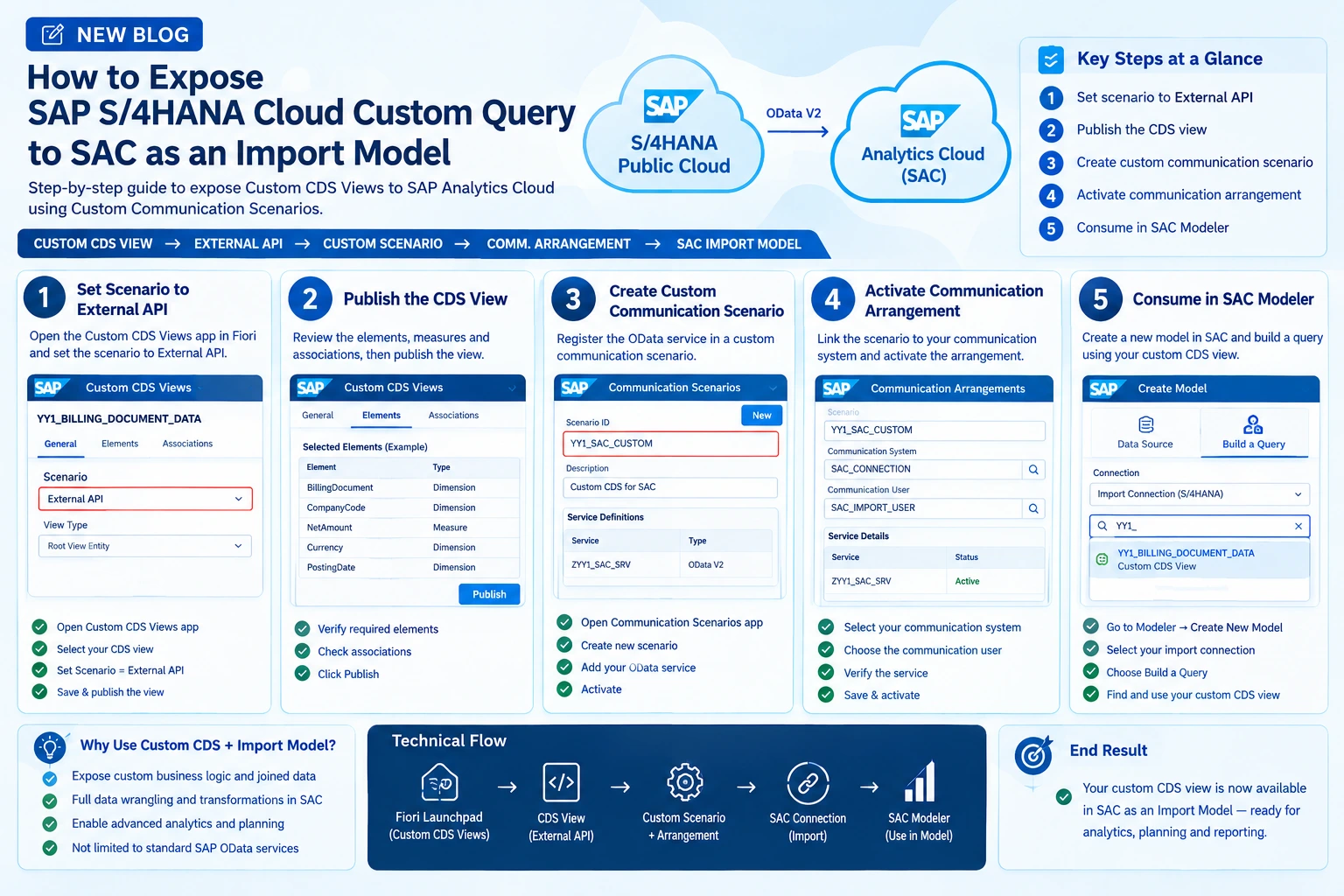
In this step-by-step tutorial, you will learn how to expose custom CDS views from SAP S/4HANA Public Cloud to SAP Analytics Cloud as an Import Data Model. We will cover:
- Exposing a Custom CDS View as an External API.
- Creating and publishing a Custom Communication Scenario.
- Activating a Communication Arrangement linked to your existing SAC communication system.
- Consuming the custom CDS view inside SAC Modeler.
The Starting Point: Why Custom CDS Views Are Not Visible by Default in SAC
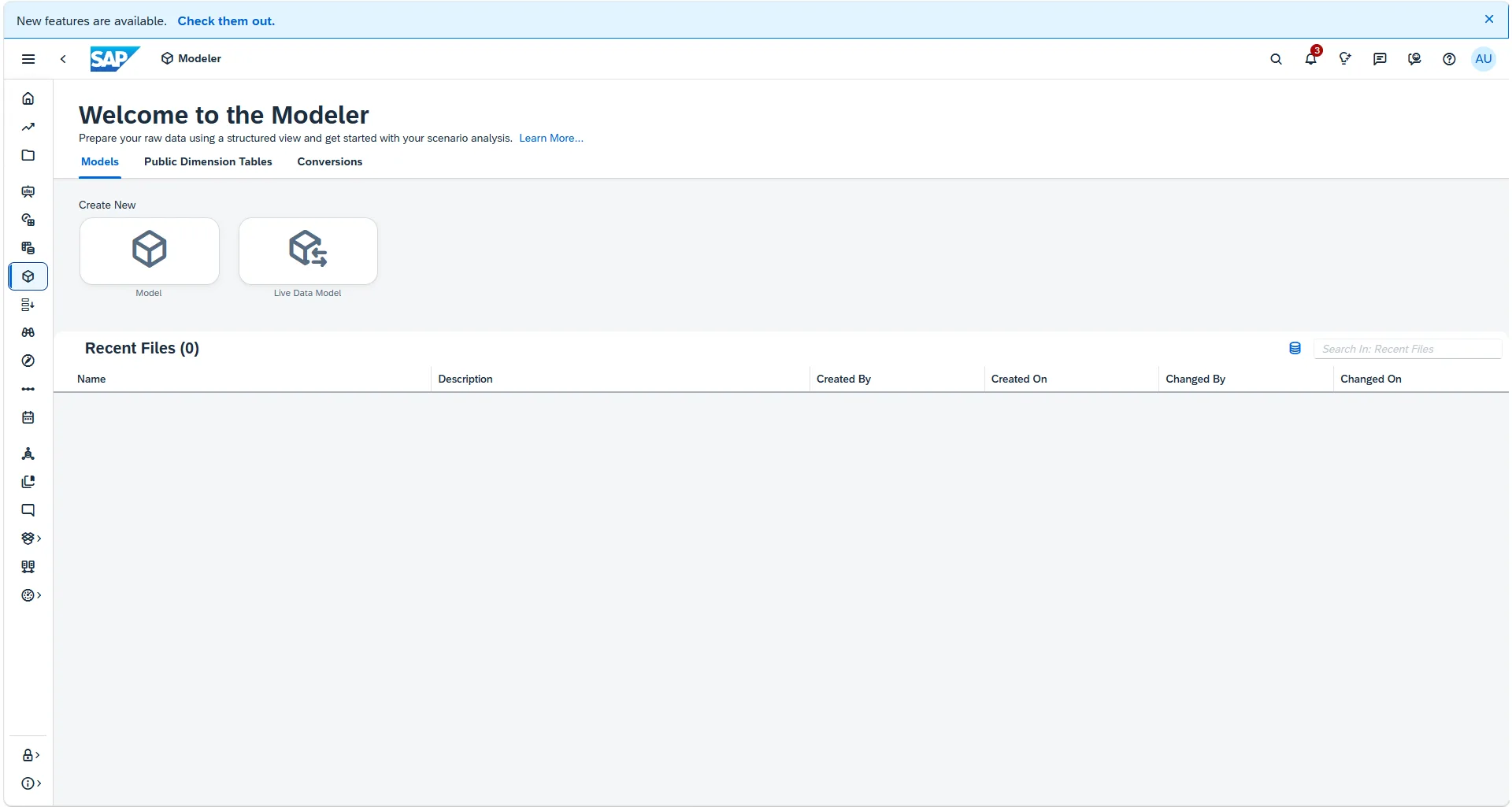
In SAP Analytics Cloud, when you navigate to Modeler → Create New Model and select your S/4HANA Import Connection:
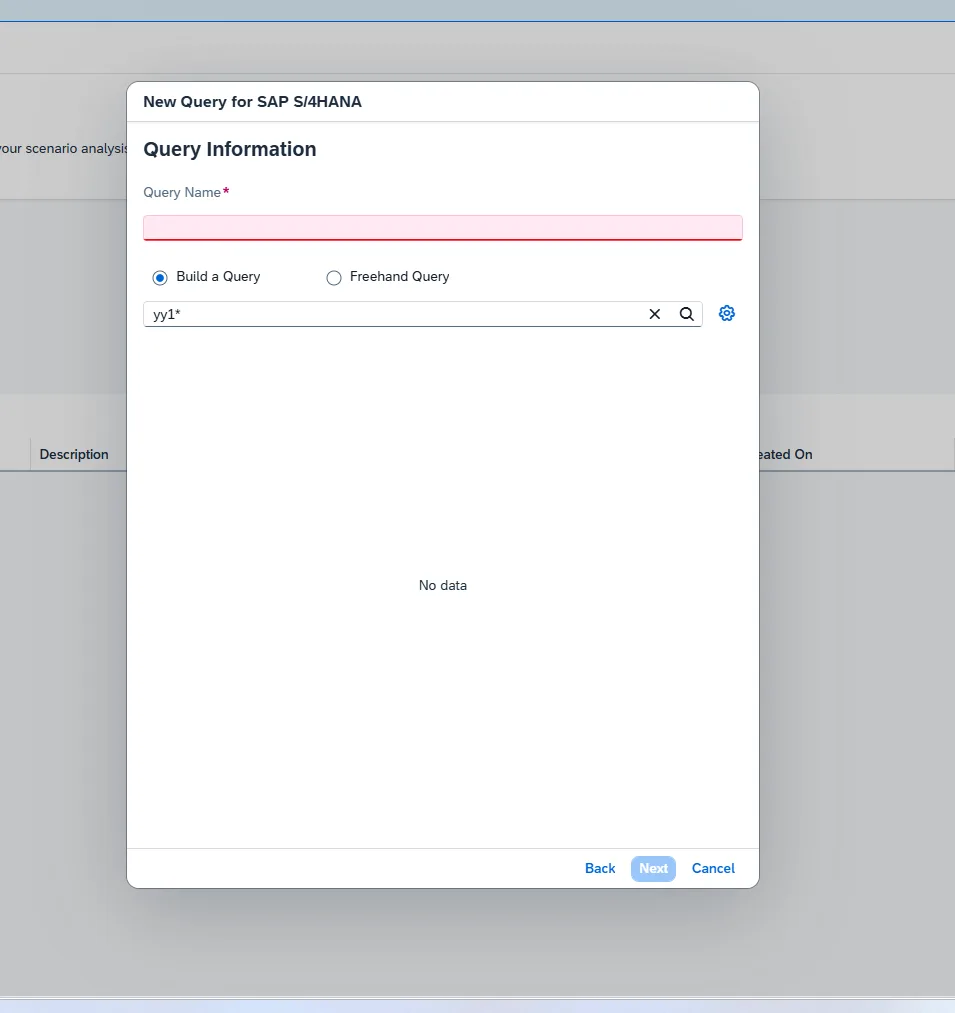
When you choose Build a Query and search for your custom CDS view (prefixed with YY1_), no results are found. Only standard pre-delivered SAP OData services appear in the list.
This is expected behavior. S/4HANA Cloud enforces strict API governance. For an external application like SAC to access a Custom CDS View via OData, three explicit building blocks are required:
- The CDS view must be published with the scenario type set to External API.
- The auto-generated CDS OData service must be registered inside a Custom Communication Scenario.
- The scenario must be bound to your external Communication System through an active Communication Arrangement.
Let's walk through this process end-to-end.
Phase 1: Expose the Custom CDS View as an External API
Our first objective is to ensure that the custom CDS view is configured with the correct scenario type so that the platform generates an OData service endpoint.
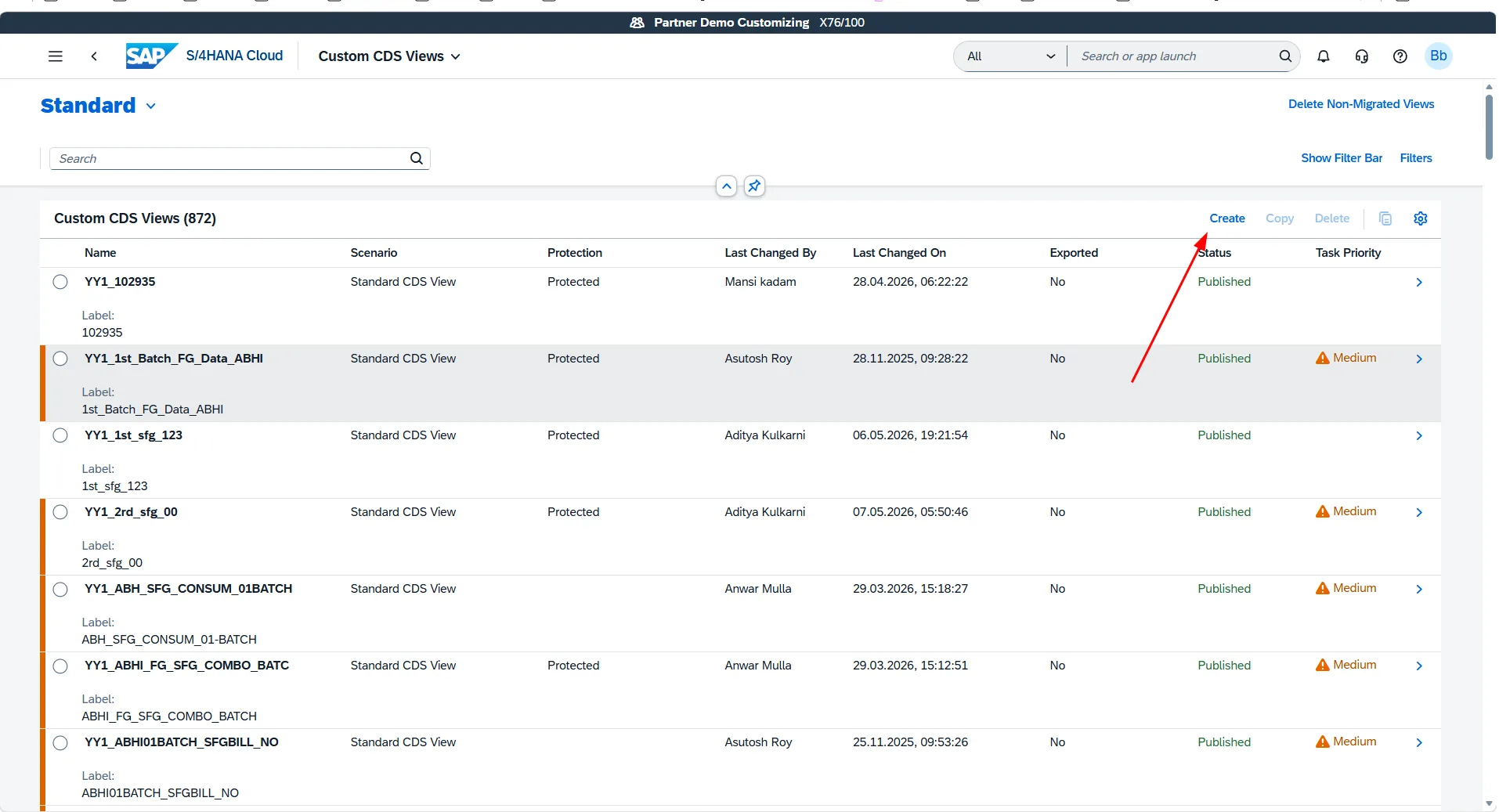
Step 1: Open the Custom CDS Views App
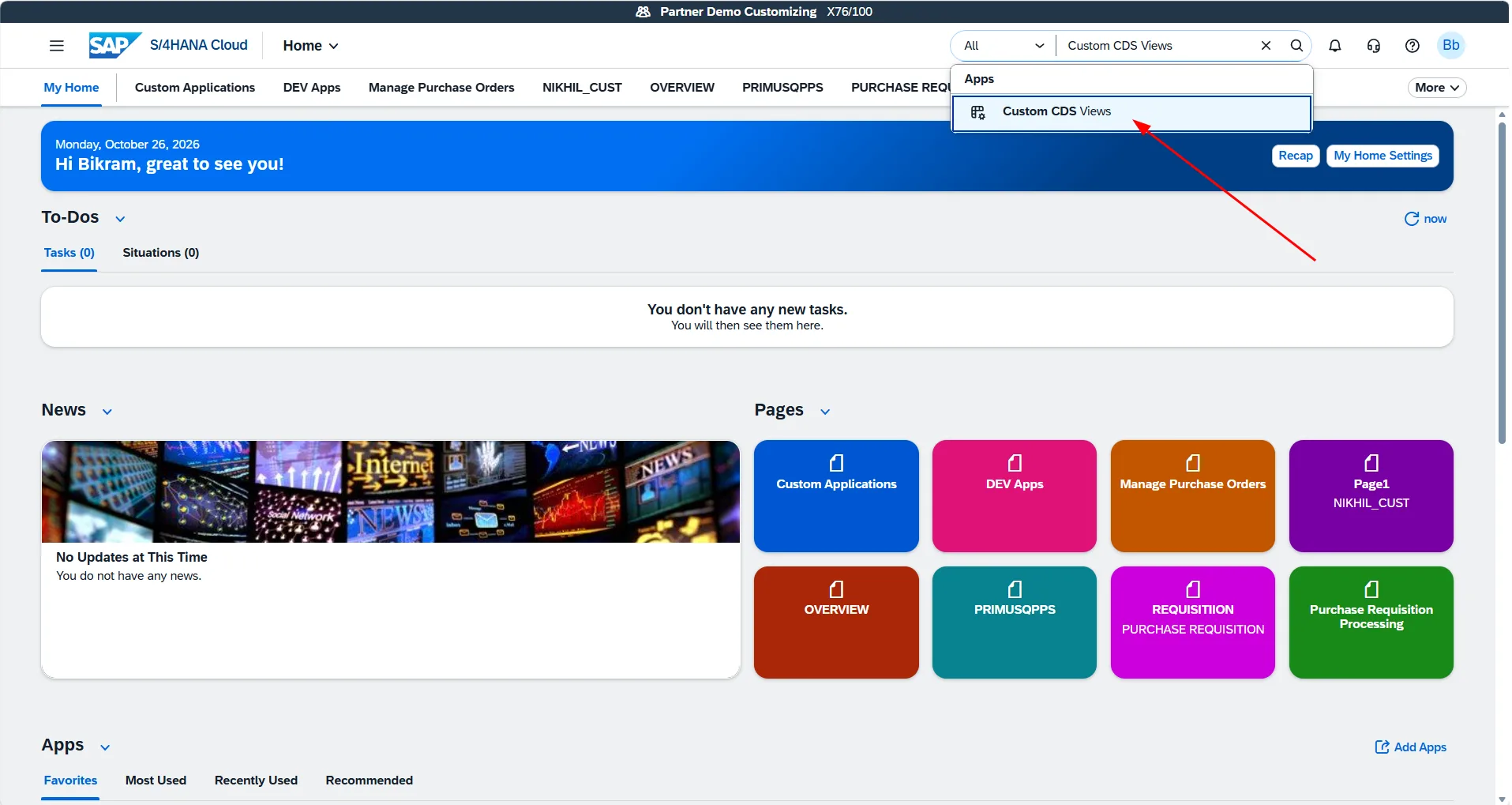
- Log in to the SAP Fiori Launchpad on your S/4HANA Public Cloud tenant.
- In the search bar, search for Custom CDS Views and launch the app.
- Locate and select your custom CDS view from the list report. Here, we select our existing billing document view
YY1_BILLING_DOCUMENT_DATA.
Step 2: Set Scenario to External API
When defining a Custom CDS View in Key User Extensibility, the Scenario property dictates how the view can be consumed:
- Analytical Cube / Dimension: Used within S/4HANA embedded analytics and query designers.
- External API: Exposes the CDS view as an OData V2 service for external consumption (SAC, third-party middleware, or external apps).
- In the CDS editor, navigate to the General section.
- Ensure the Scenario dropdown is set to
External API.
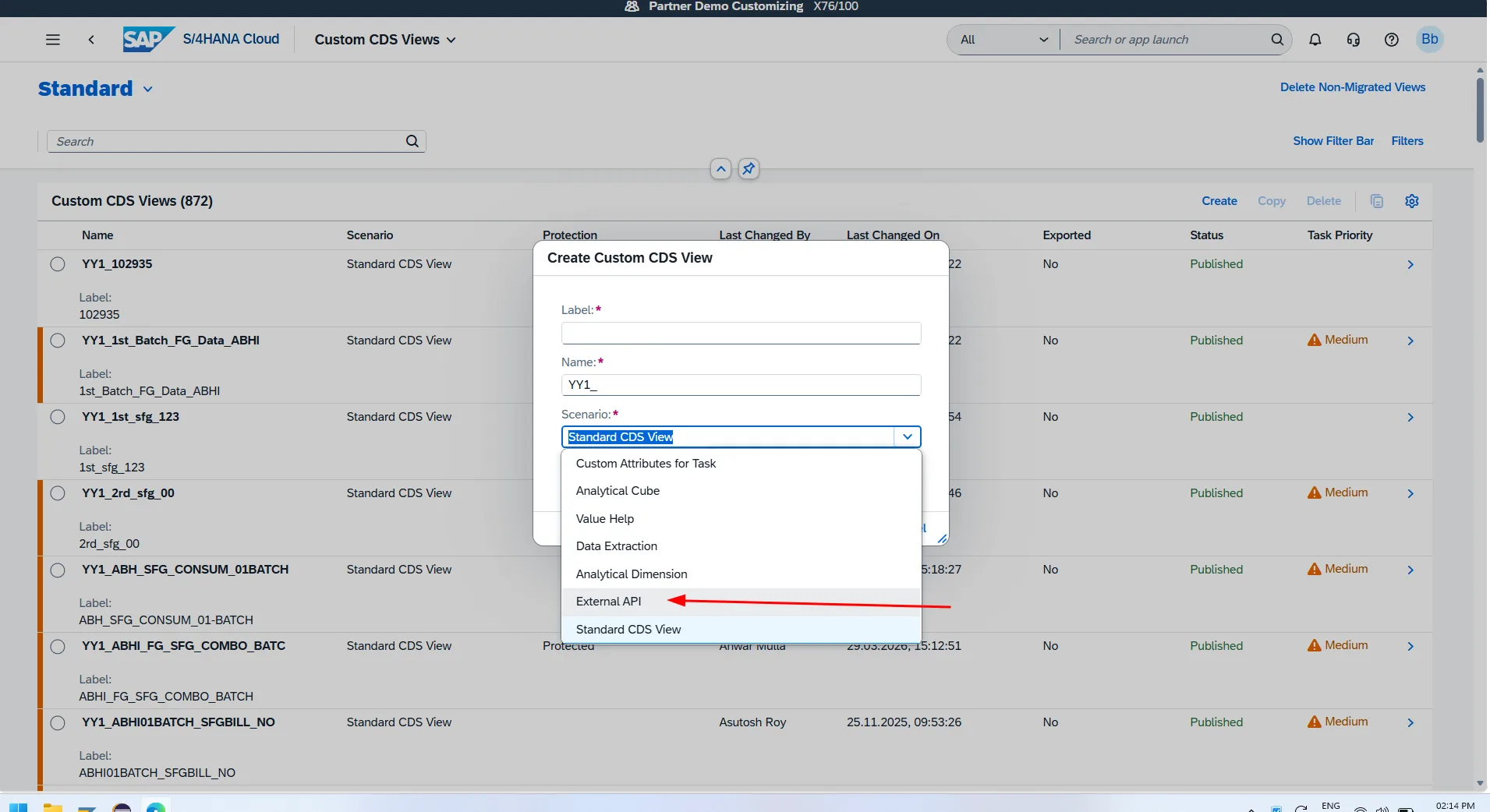
Important: If your CDS view was originally created under a different scenario (such as Analytical Cube), you cannot directly consume it through communication scenarios. You must use a CDS view configured with the
External APIscenario.
Step 3: Review Elements and Publish
- Switch to the Elements tab to confirm all required dimensions, measure attributes, and associations are selected.
- Click Publish in the bottom-right corner.
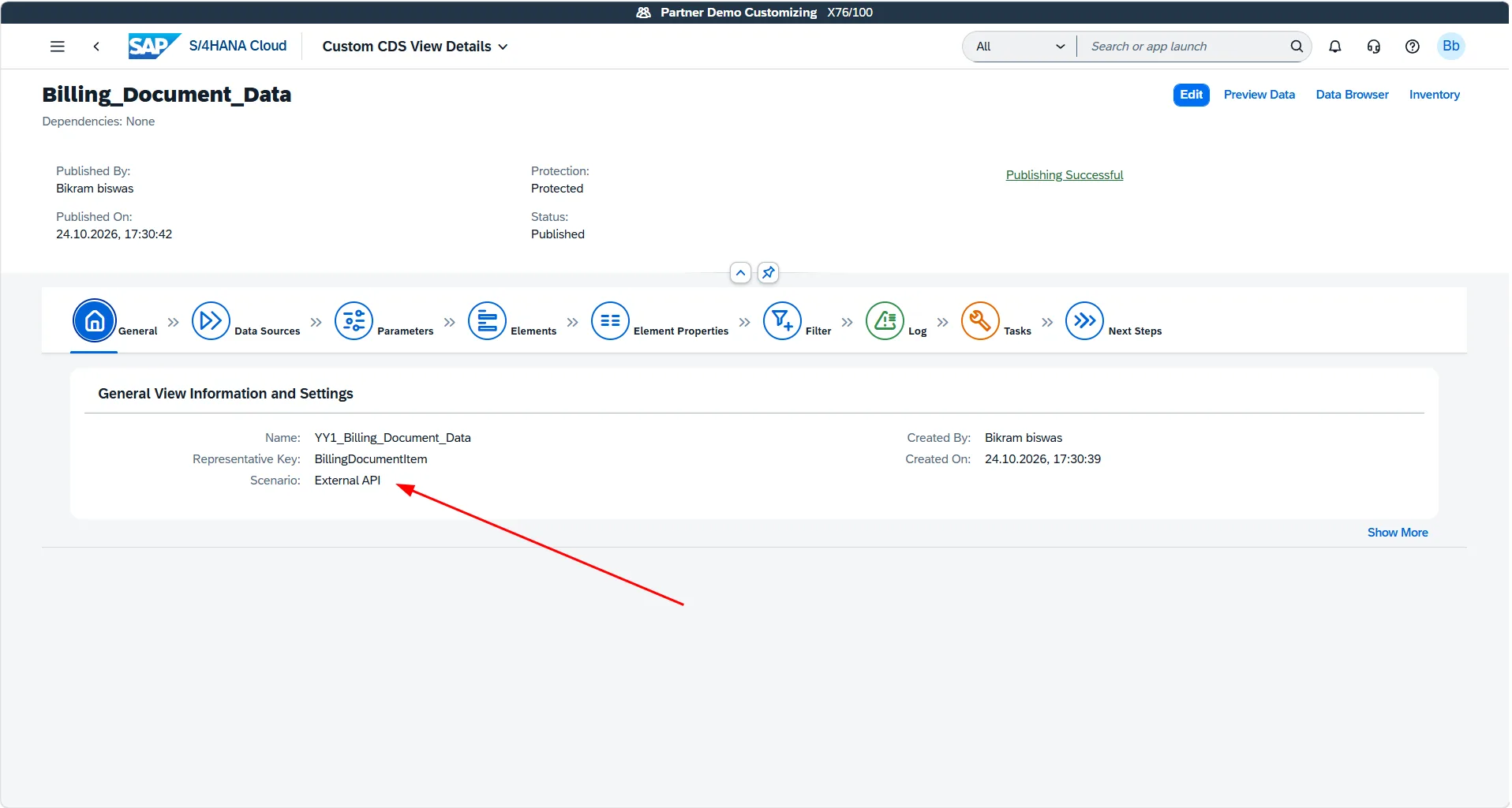
Wait until the status displays Published in green. Once published as an External API, S/4HANA auto-generates an OData V2 service with _CDS appended to your CDS technical name (for example: YY1_BILLING_DOCUMENT_DATA_CDS).
Phase 2: Create a Custom Communication Scenario
To expose our newly generated OData service to SAC's technical user, we must bundle it into a Custom Communication Scenario.
Step 4: Open Custom Communication Scenarios App
- Return to the SAP Fiori Launchpad.
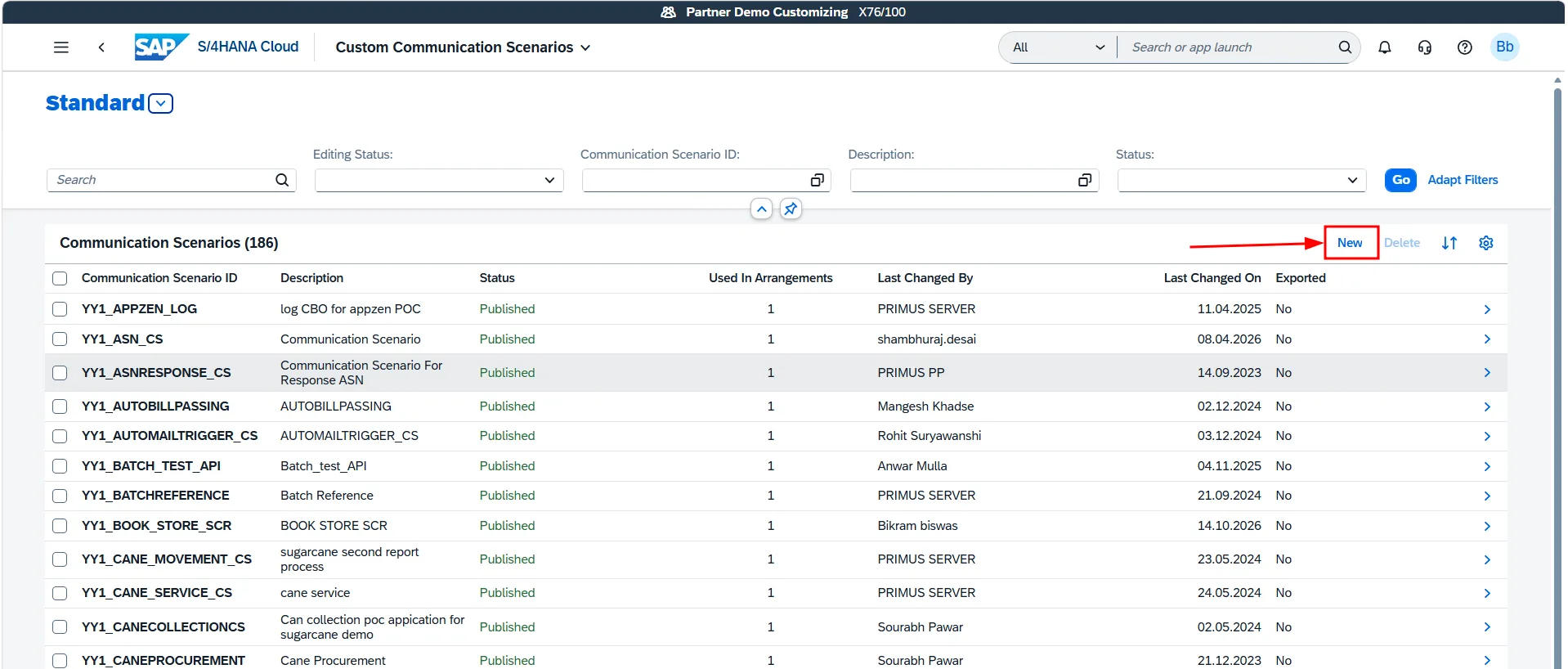
- Search for Custom Communication Scenarios and open the app.
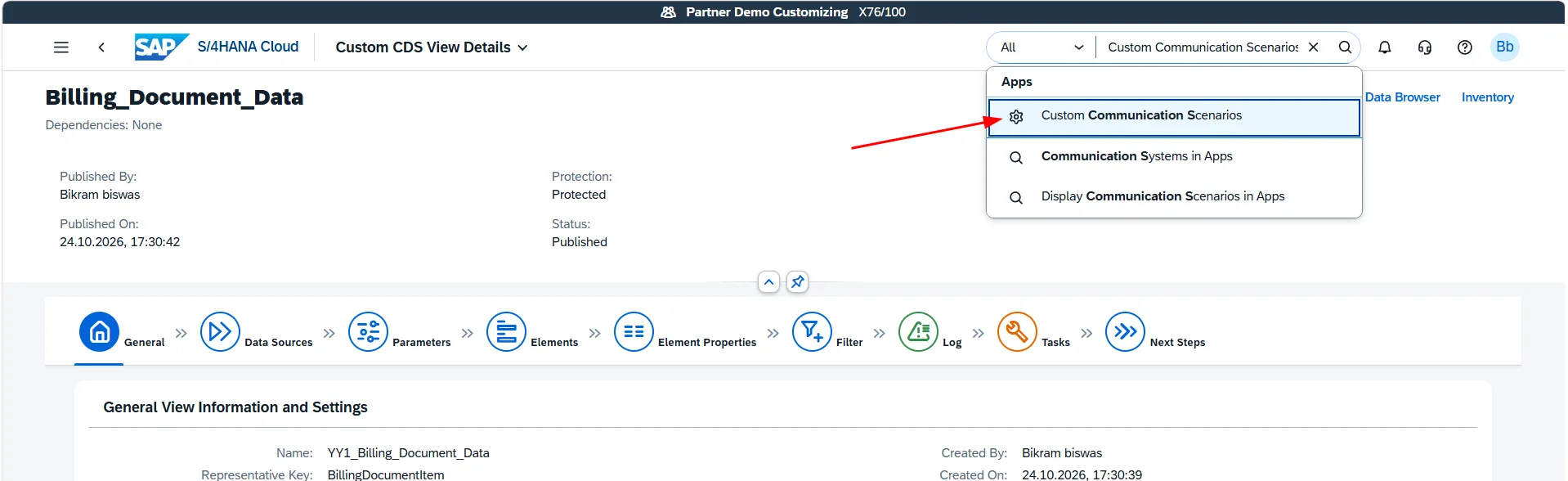
- The app lists all user-defined integration scenarios in the tenant. Click the New button in the header toolbar.
Step 5: Define Scenario ID and Description
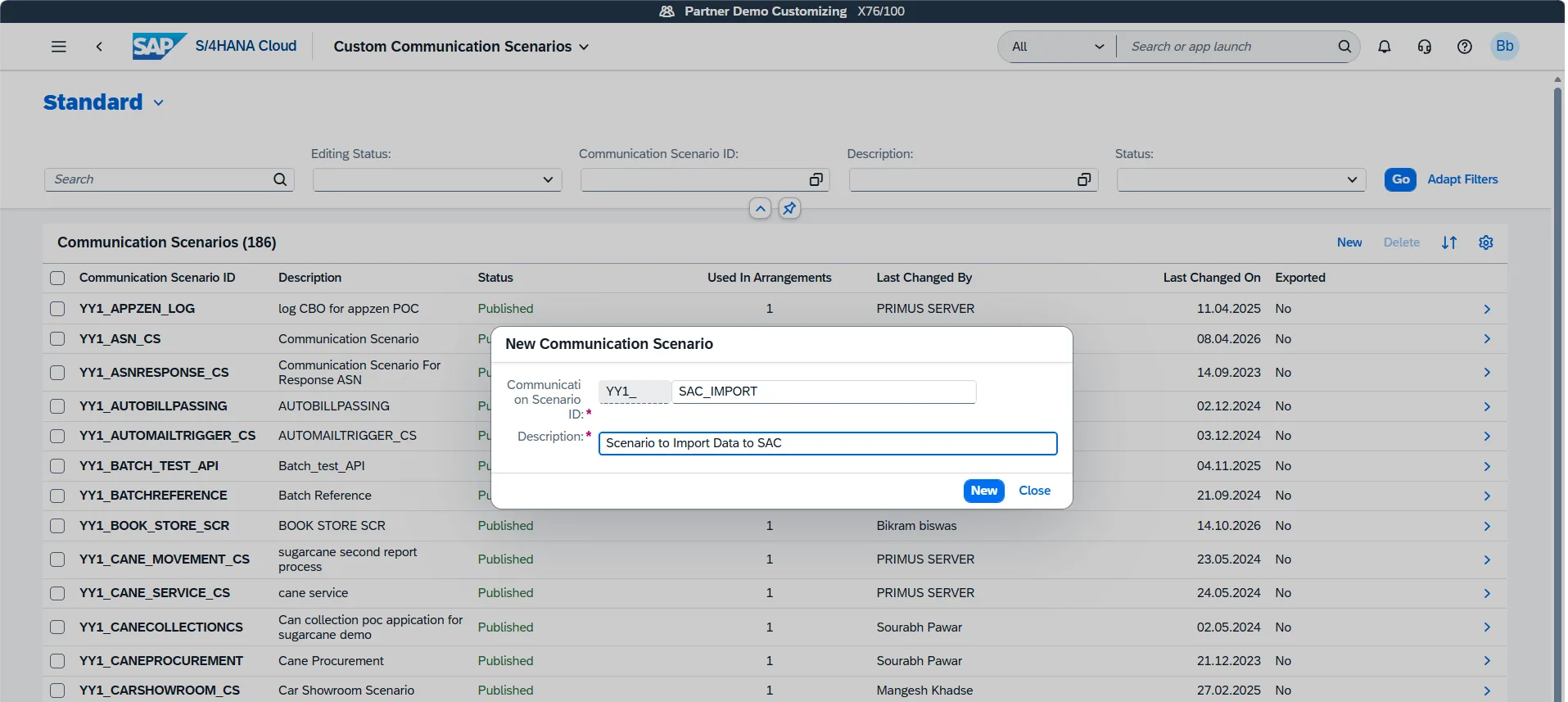
In the creation popup:
- Scenario ID: Enter a unique technical ID prefixed with
YY1_(for example,YY1_SAC_CUSTOM_IMPORT). - Description: Provide a meaningful description (e.g.,
Custom CDS Import Scenario for SAC). - Click New.
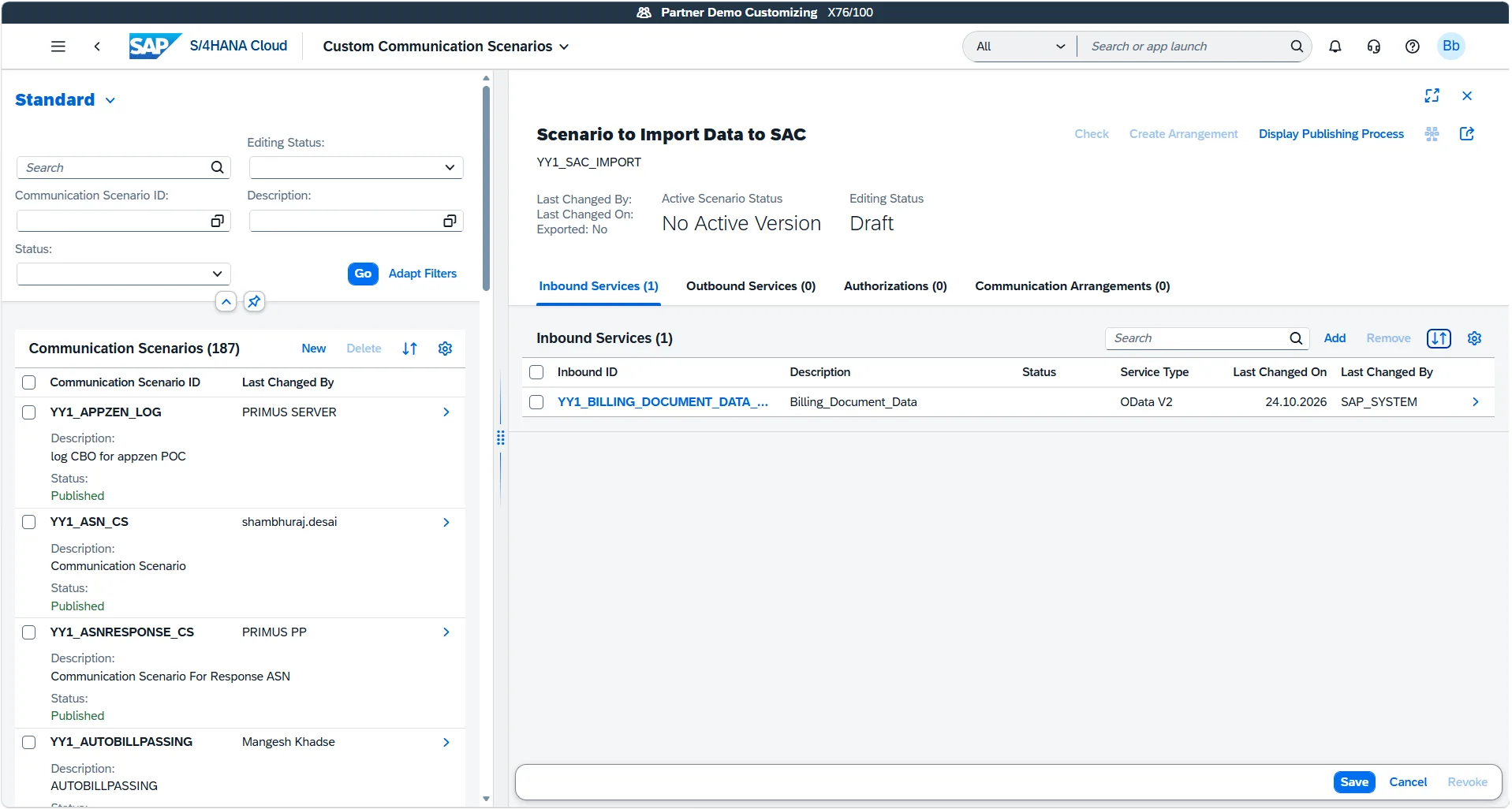
Step 6: Add Inbound Service (External API)
A communication scenario requires at least one inbound service interface to handle incoming API requests from external systems like SAC.
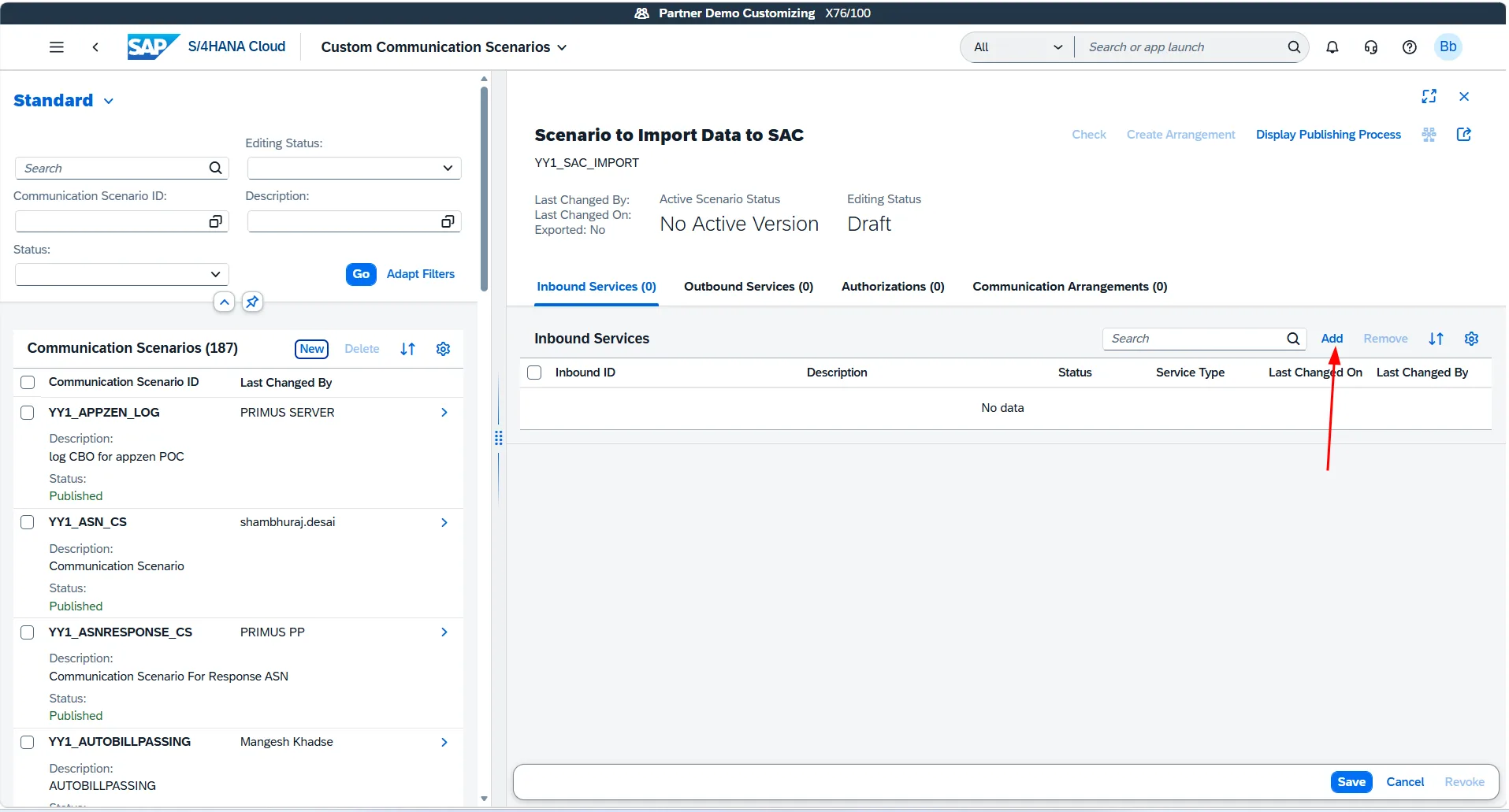
- In the newly created scenario, select the Inbound Services tab.
- Click the + (Add) button.
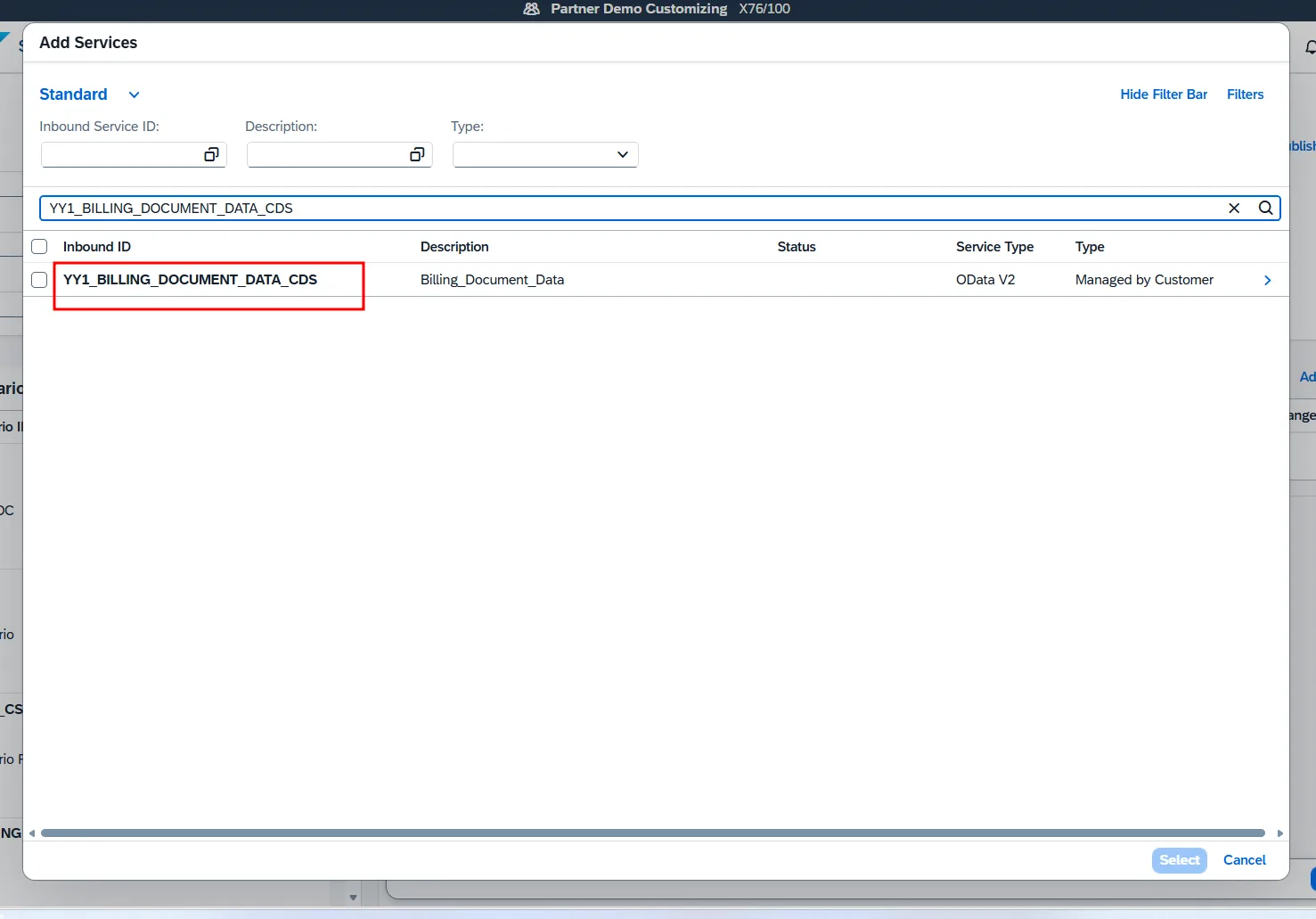
- In the service search dialog, search for your custom CDS view name (
YY1_BILLING_DOCUMENT_DATA). - Notice that S/4HANA Cloud automatically appends
_CDSto the service name:YY1_BILLING_DOCUMENT_DATA_CDS - Select the service and confirm your selection.
- The service is now listed under Inbound Services with protocol
OData V2. Click Save.
Step 7: Publish the Communication Scenario
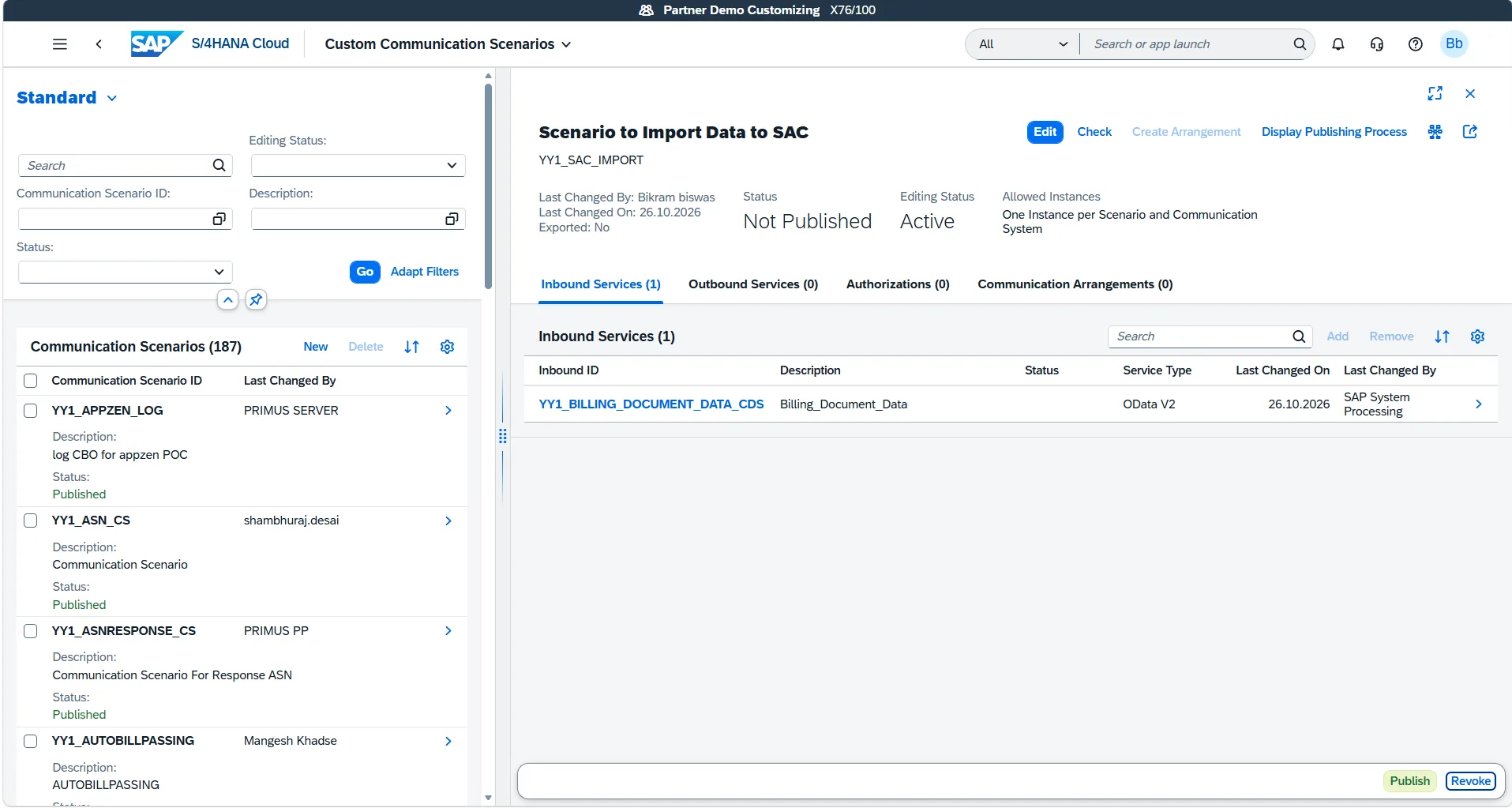
Before the scenario can be used in a Communication Arrangement, it must be published across the tenant.
- Click the Publish button in the header bar.
- The status indicator changes to Publishing.
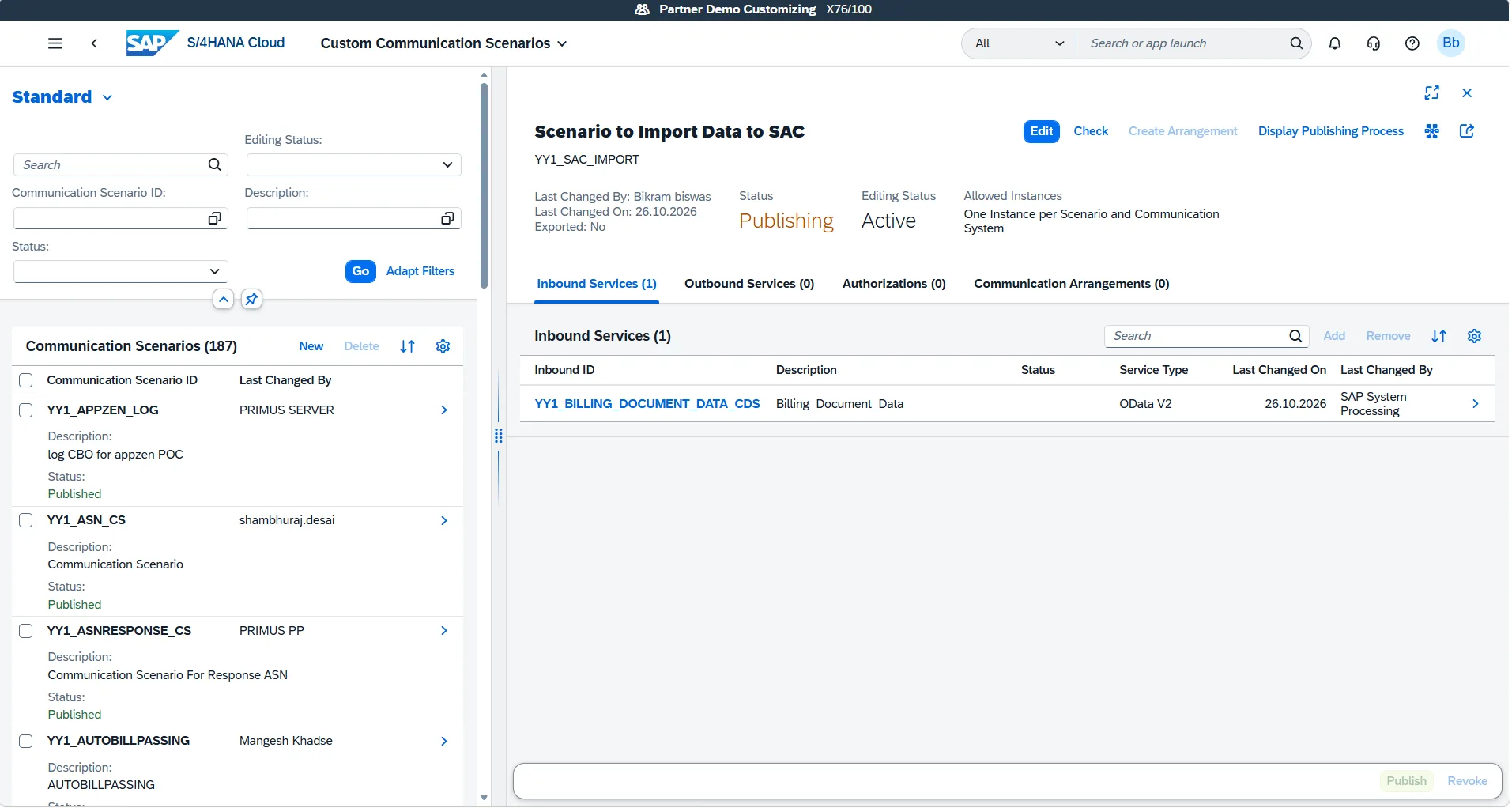
Note: Publishing may take 1 to 2 minutes depending on tenant load and background generation queues. Do not navigate away while the status is in progress.
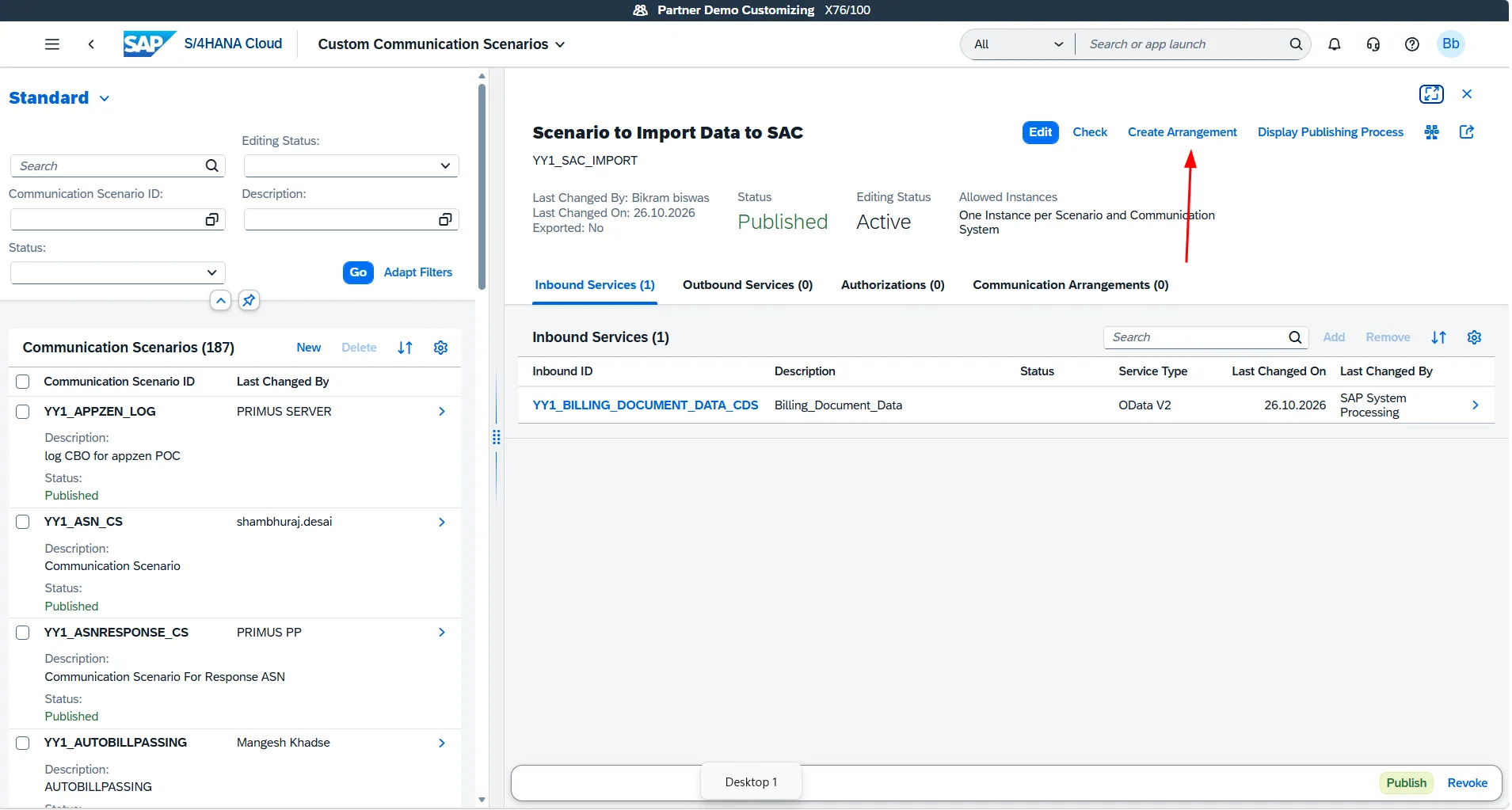
- Once completed, the status updates to Published with a green checkmark.
Phase 3: Create and Activate the Communication Arrangement
Now that the scenario is published, we link it to our existing SAC communication infrastructure by creating a Communication Arrangement.
Step 8: Create Communication Arrangement from Scenario
- Directly from the published scenario screen, click the Create Communication Arrangement button located in the upper-right corner.
- In the creation dialog:
- Scenario: Pre-filled with your scenario (e.g.,
YY1_SAC_CUSTOM_IMPORT). - Arrangement Name: Enter a descriptive name (or keep the default).
- Click Create.
- Scenario: Pre-filled with your scenario (e.g.,
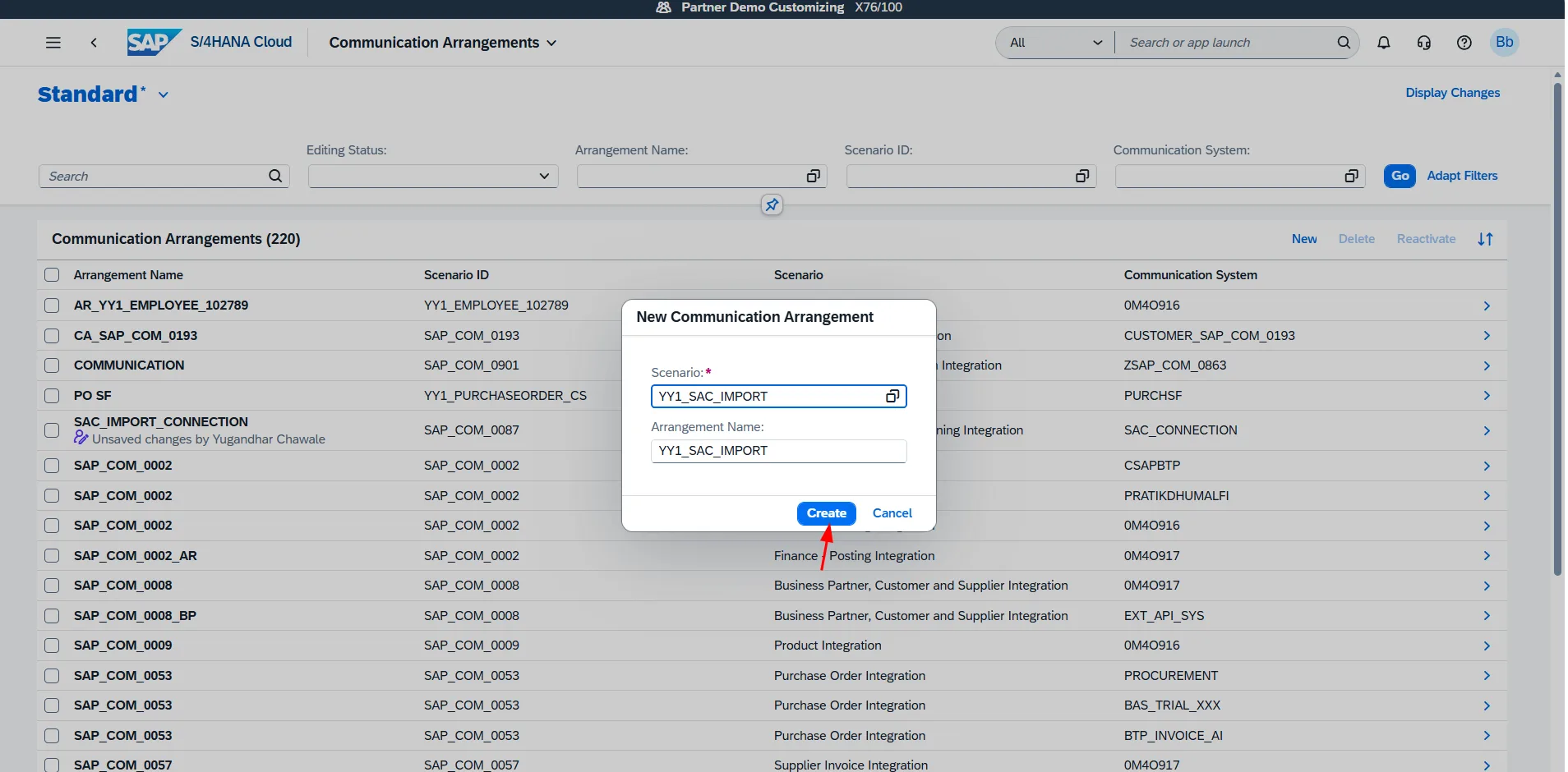
Step 9: Assign Existing Communication System (SAC_CONNECTION)
To allow SAC to reuse the same credentials and HTTPS endpoint we established previously, assign our pre-configured Communication System.
- On the Communication Arrangement configuration page, locate the Common Data section.
- Click the value help icon for Communication System.
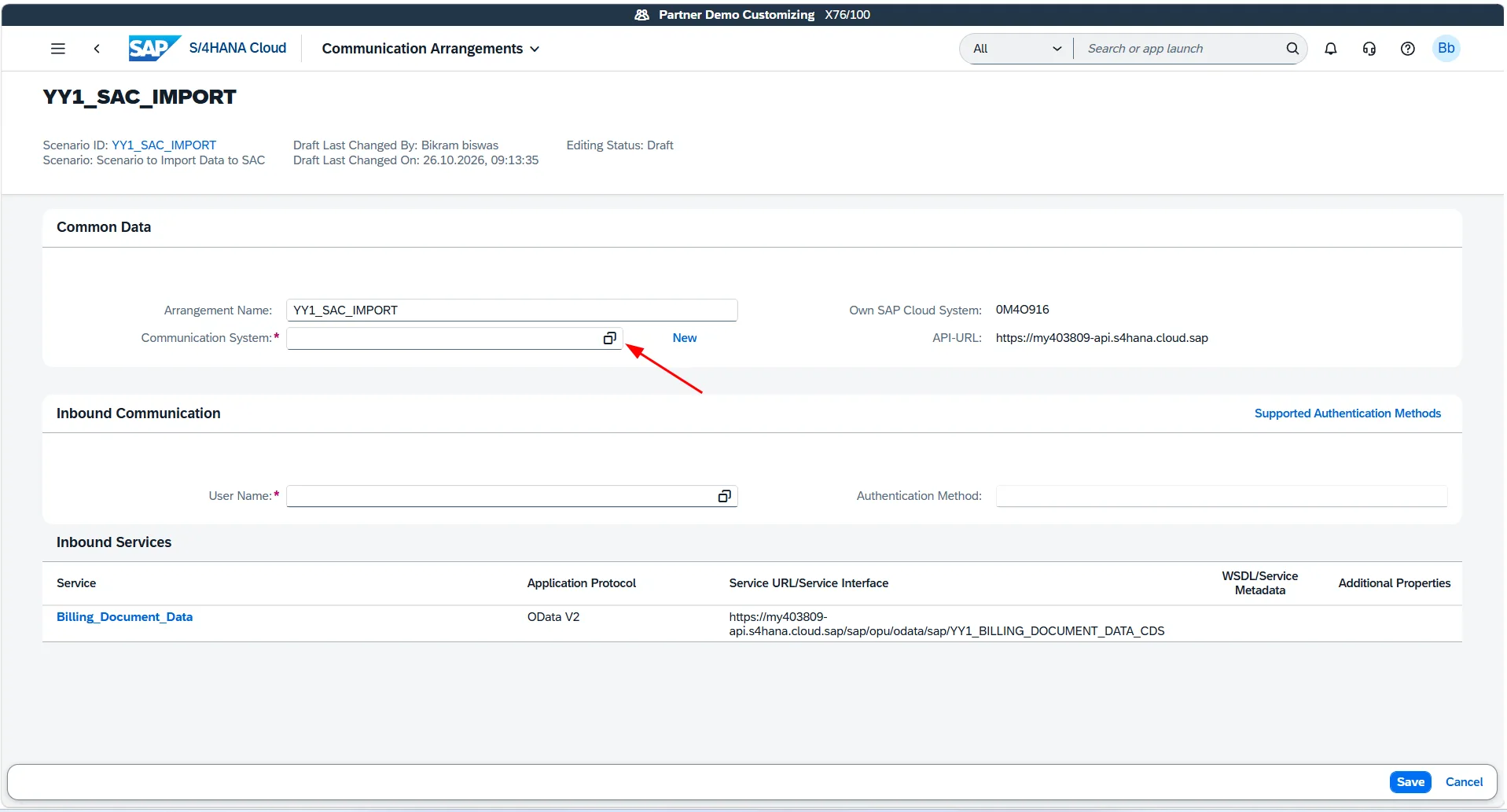
- Select the communication system we created in Blog 09:
SAC_CONNECTION.
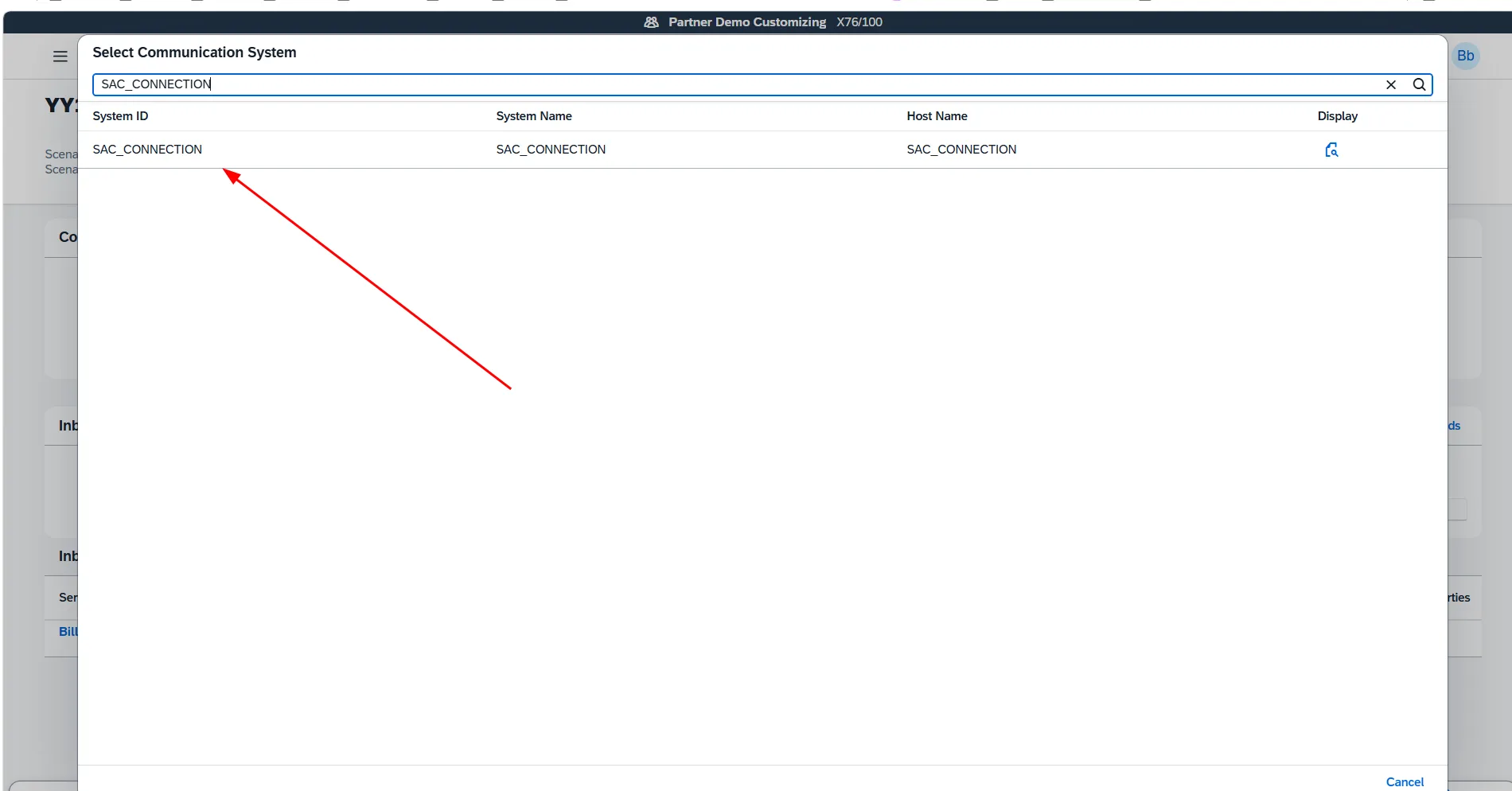
- Once selected, the system automatically populates:
- Inbound Communication User:
SAC_IMPORT_USER - Authentication Method: Basic Authentication
- Assigned Inbound Service:
YY1_BILLING_DOCUMENT_DATA_CDS
- Inbound Communication User:
- Click Save in the bottom-right corner to activate the arrangement.
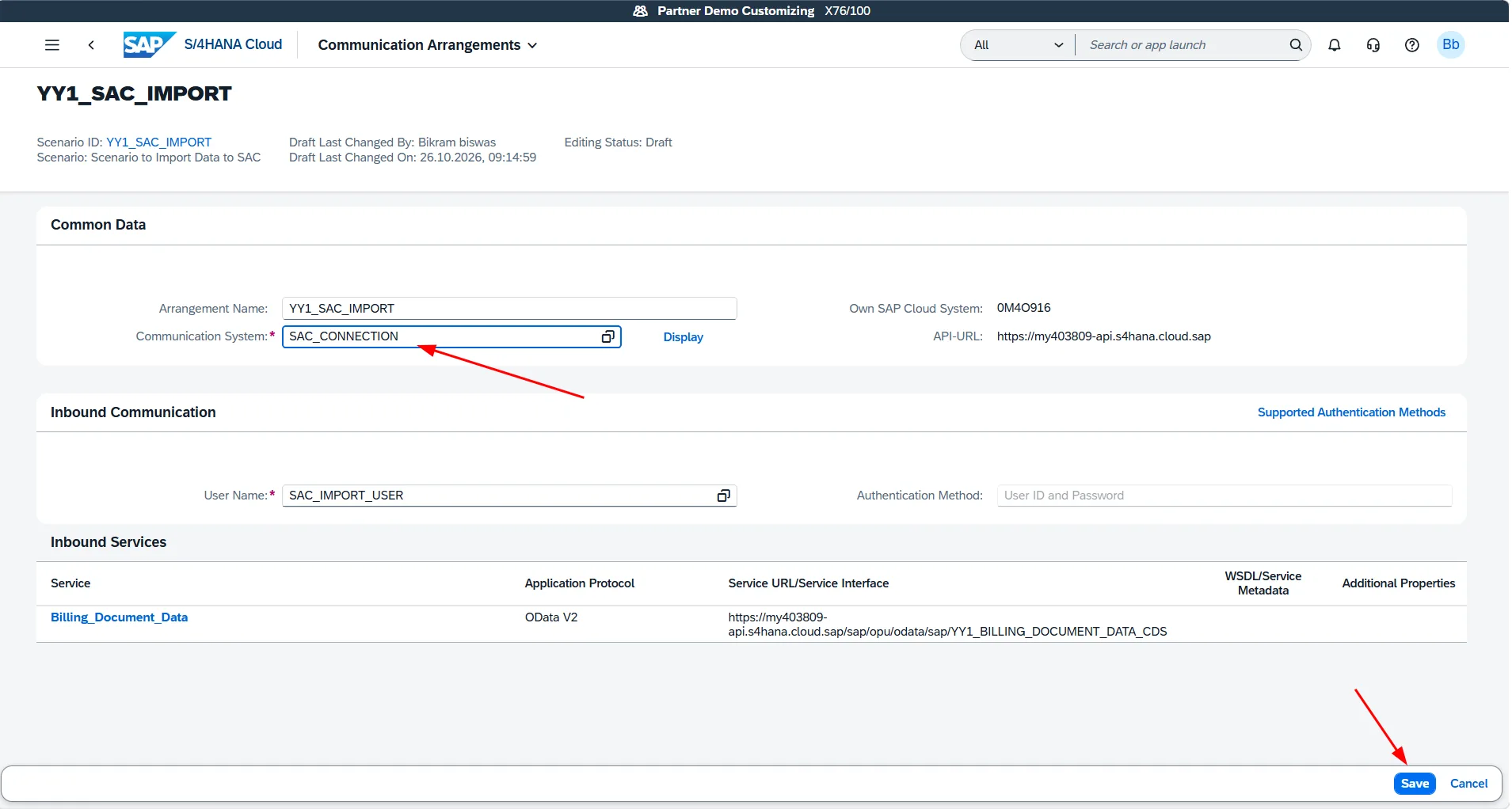
The arrangement is now active. The technical user SAC_IMPORT_USER has immediate authorization to query YY1_BILLING_DOCUMENT_DATA_CDS over HTTPS.
Phase 4: Import and Verify Custom CDS Data in SAC Modeler
With backend exposure and security configured, we can now verify the dataset inside SAP Analytics Cloud.
Step 10: Build Query in SAC Modeler
- Log in to your SAP Analytics Cloud tenant.
- In the side navigation bar, go to Modeler → Create New → Model.
- Select Import Connection (Connection to Public Cloud) and click Next.
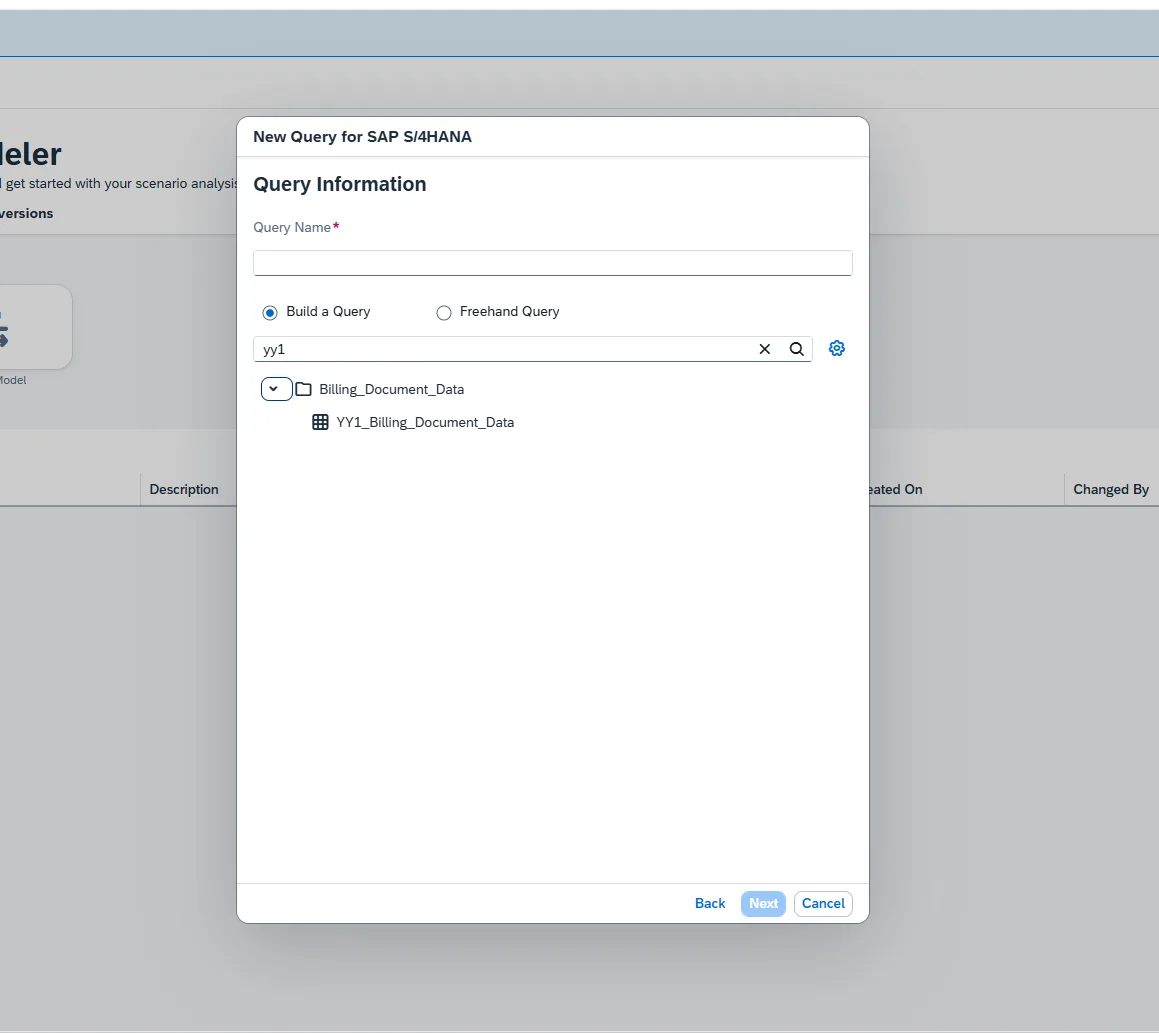
- In the New Query for SAP S/4HANA dialog, click Build a Query.
- In the service search bar, search for your custom CDS view:
YY1_BILLING_DOCUMENT_DATA_CDS - The custom CDS view now appears in the catalog, ready for acquisition!
- Select the entity, choose your fields, apply any required filters or time-range restrictions, and finish building your SAC Import Model.
Technical Comparison: Custom CDS Import vs. Standard SAP_COM_0087 vs. Live InA
| Dimension | Custom CDS Import Model | Standard SAP_COM_0087 Import |
Live InA Model |
|---|---|---|---|
| Development Tool | S/4HANA Fiori (Custom CDS Views) | Pre-delivered standard SAP content | Eclipse ADT (Developer Extensibility) |
| Exposure Mechanism | Custom Scenario + Communication Arrangement | Pre-delivered SAP_COM_0087 Arrangement |
Service Binding (InA - UI) + IAM App |
| Protocol | OData V2 (_CDS) |
OData V2 (API_*_SRV / *_CDS) |
Information Access (InA) |
| Data Storage | Replicated to SAC In-Memory | Replicated to SAC In-Memory | Zero replication (stays in S/4HANA) |
| Custom Logic | Custom joins, calculated columns & filters | Limited to standard entity fields | Full CDS view entity SQL & analytical annotations |
| SAC Use Case | Tailored data wrangling, offline reports, SAC Planning | Standard financial/master data planning | Real-time dashboards, operational monitoring |
Troubleshooting Common Issues
1. Custom CDS View Does Not Appear in Communication Scenario Value Help
- Cause: The CDS view scenario was not set to
External API, or the view is still in draft state. - Fix: Open the Custom CDS Views app, verify that the Scenario field is set to
External API, and click Publish. Wait until the status turns green before adding it to the scenario.
2. Service Not Visible in SAC Modeler Search
- Cause 1: The Custom Communication Scenario was saved but not published.
- Fix 1: Verify in Custom Communication Scenarios that the scenario status is Published.
- Cause 2: The Communication Arrangement was not saved or linked to
SAC_CONNECTION. - Fix 2: Ensure the arrangement has status Active and that
SAC_CONNECTIONis assigned in Common Data.
3. HTTP 403 Forbidden When Querying Service from SAC
- Cause: The communication user configured in SAC (
SAC_IMPORT_USER) is not assigned to the custom communication arrangement. - Fix: Open the custom communication arrangement in S/4HANA Cloud and ensure
SAC_IMPORT_USERis maintained under Inbound Users.
Summary
In this guide, we completed the end-to-end process of exposing custom business data from SAP S/4HANA Public Cloud to SAP Analytics Cloud as an Import Data Model:
- Configured Custom CDS View: Set scenario to
External APIand published the view to generate the OData V2 service (YY1_BILLING_DOCUMENT_DATA_CDS). - Created Custom Communication Scenario: Bundled the custom inbound OData service and published the scenario.
- Activated Communication Arrangement: Linked the scenario to our existing
SAC_CONNECTIONcommunication system and technical user. - Verified in SAC Modeler: Successfully browsed and imported the custom dataset into an SAC Import Model.
By combining Key User Extensibility with Custom Communication Scenarios, you can seamlessly bring any tailored business logic or calculated data into SAC for advanced transformations and enterprise planning.